Connect a model
Once your model server is running, with OpenVINO or with llama.cpp, add it to Artemis Desktop as a model source.
Add a Self-Hosted source
- Click Models in the bottom left corner of Artemis Desktop.
- Under Add a source, choose Self-Hosted.
- Enter the Name, Address and, if needed, API key of your model server, as in Figure 1.
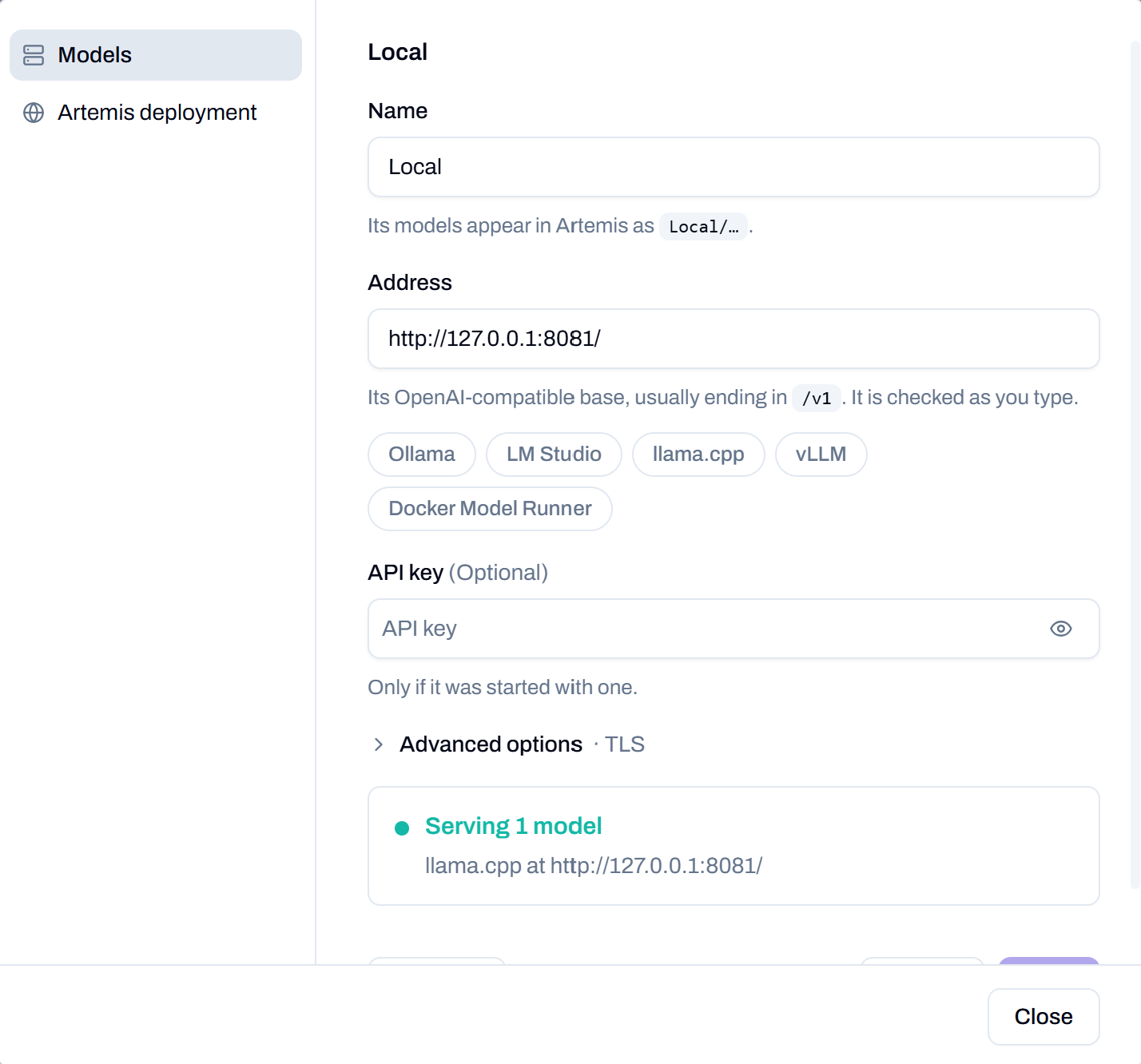
Figure 1. Adding a Self-Hosted source in the Models window.
Enter the details of your model server. For example, with the llama.cpp examples:
| Setting | Value |
|---|---|
| Name | A name for the source, such as Local. Its models appear in Artemis as Local/…. |
| Address | http://127.0.0.1:8081/, the host and port the server was started on. Artemis Desktop checks it as you type. |
| API key | Leave empty unless you started the model server with one. |
When Artemis Desktop reaches the server, the form shows how many models it is serving, for example Serving 1 model from llama.cpp.
Once connected, the source shows the models it serves, such as Local/Qwen3-Coder-30B-A3B or Local/Qwen3.6-35B-A3B, depending on the running model (Figure 2).
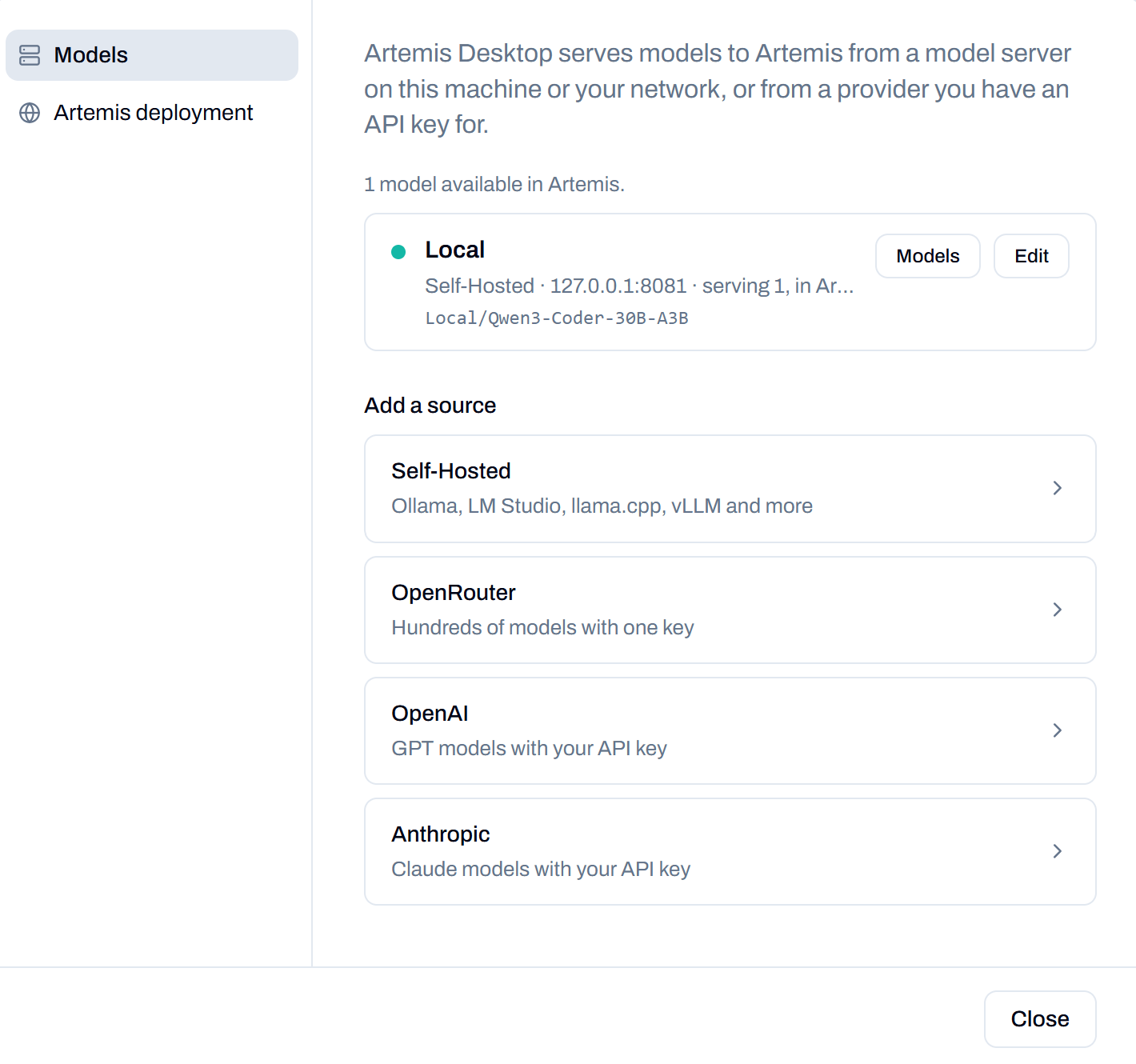
Figure 2. A connected source, serving Local/Qwen3-Coder-30B-A3B.
Connection status
The indicator beside Models in the bottom left corner shows the current connection status.
| Indicator | Meaning |
|---|---|
| ● Green | The model is successfully connected and available. |
| ● Red | The connection to the model has been lost. Check that the model server is running and that the configured endpoint is correct. |
Ensure the model server remains running while using Artemis Desktop. If the connection is lost, restore the model server or correct the endpoint configuration, then check the indicator again.
If the indicator stays red, see Troubleshooting.