User Settings
User Settings let you configure agent limits, manage contexts, connect integrations, and monitor system health.
Accessing Platform Settings
Click Platform Settings in the top navigation bar. The left sidebar organises all settings into three groups: AI, Integrations, and System.
AI
Agent Limits
Set the maximum cost and steps allowed per agent run to control resource usage and prevent runaway operations.
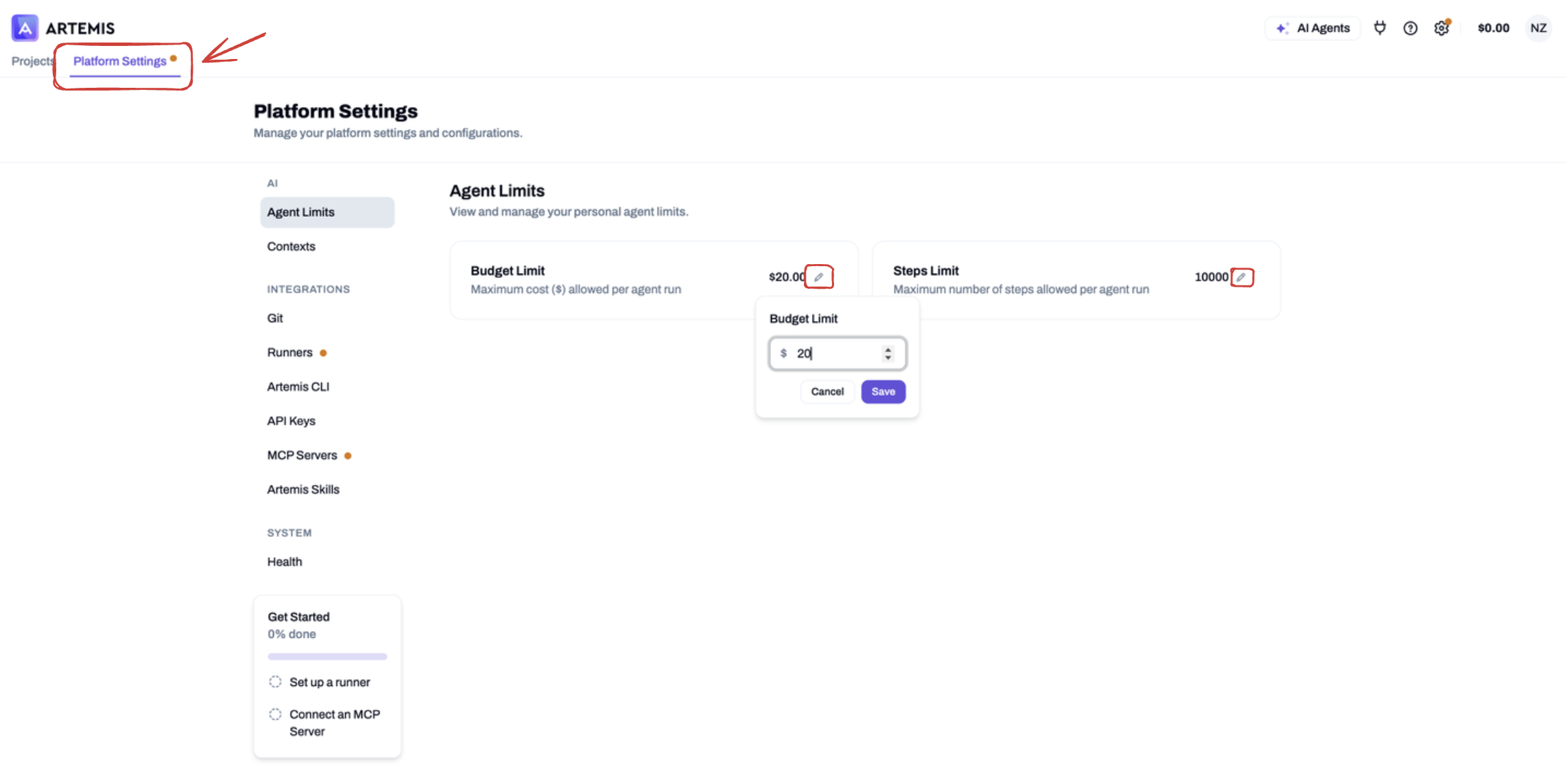
- Budget Limit — Maximum cost ($) allowed per agent run. Click the edit icon to adjust.
- Steps Limit — Maximum number of steps allowed per agent run. Click the edit icon to adjust.
Contexts
Manage what agents remember across runs. Each context item has an availability mode that controls when the agent can access it.
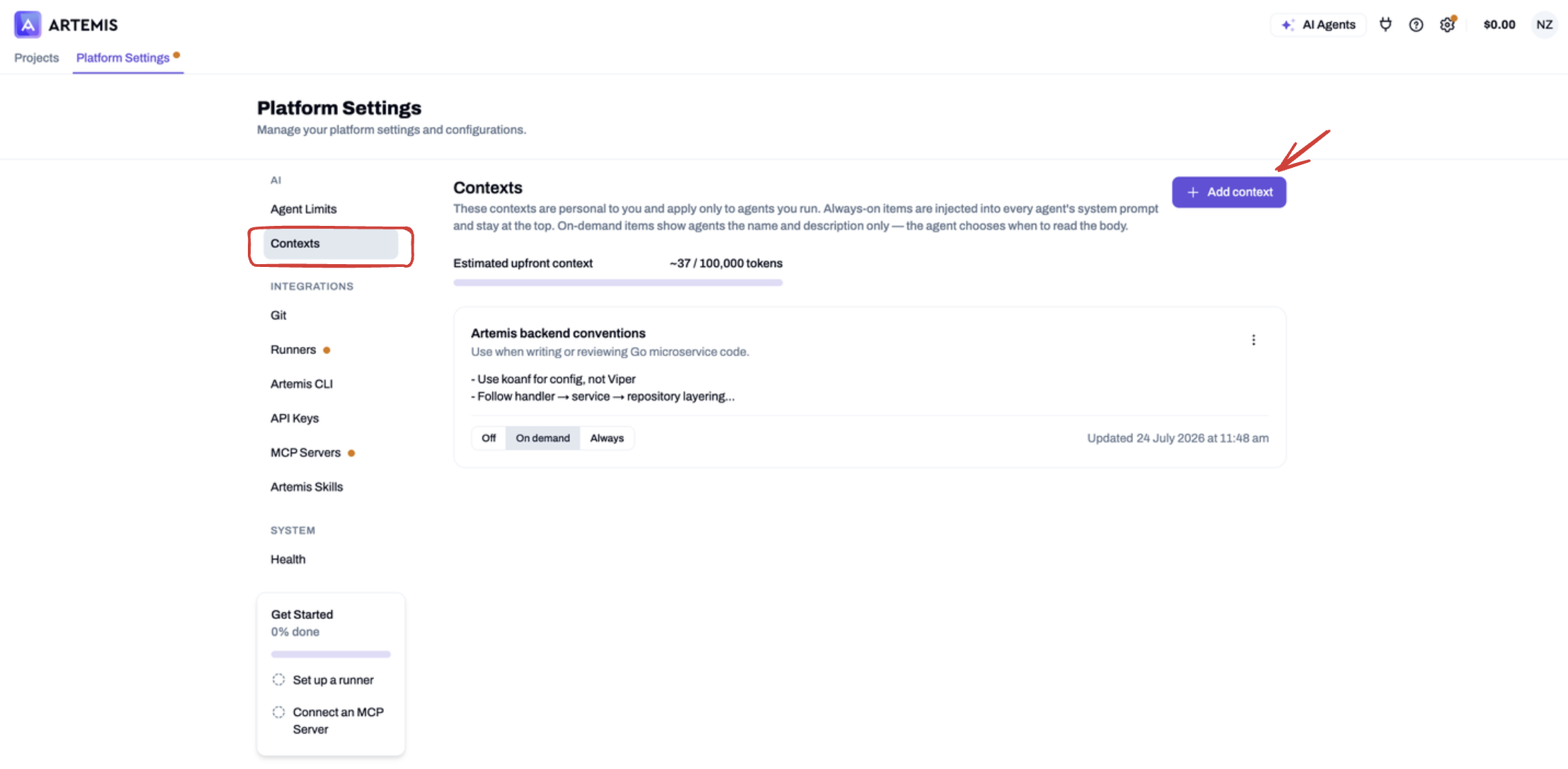
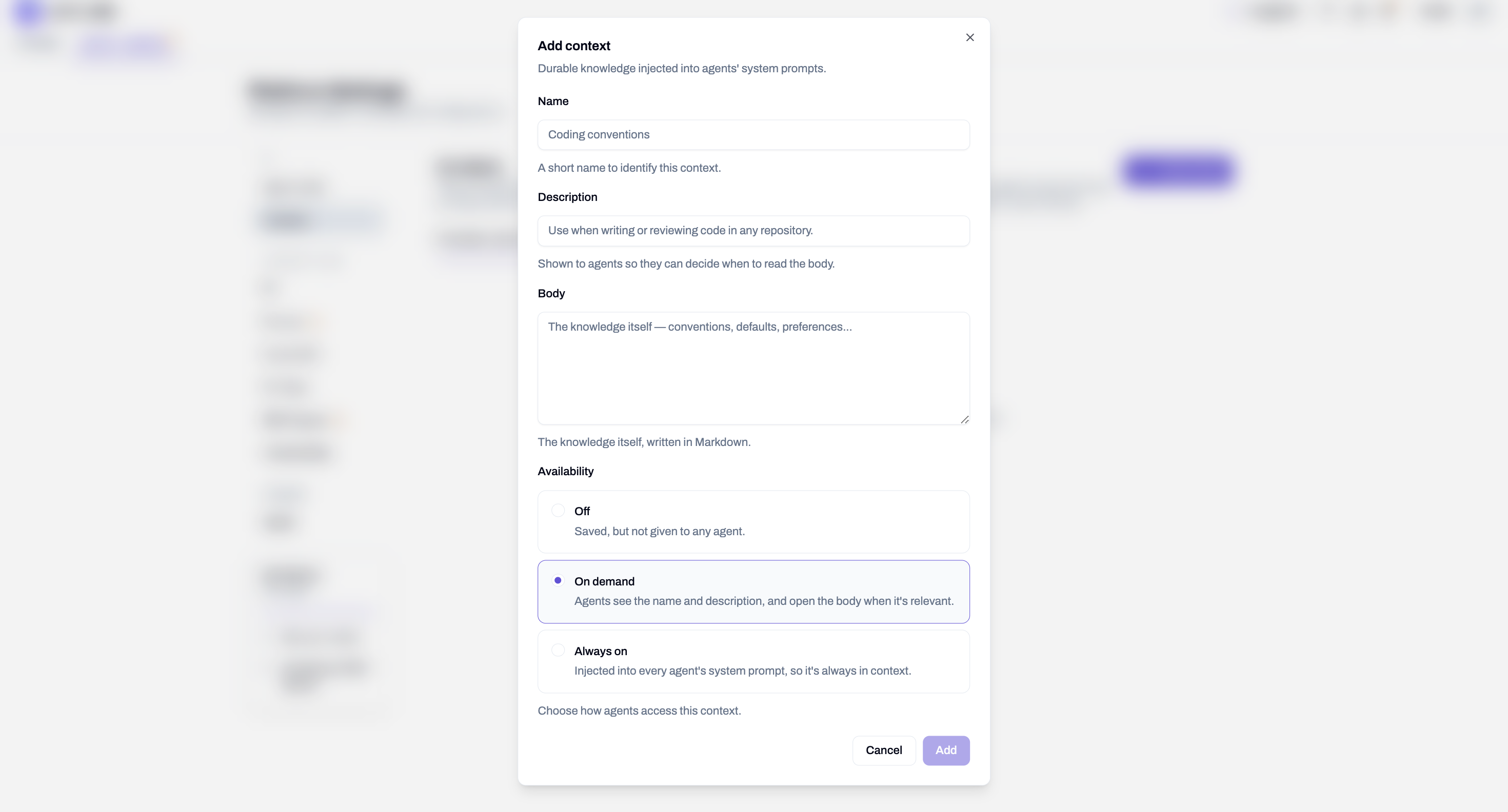
- Always — The agent always has access to this context.
- On Demand — The agent decides when to read it.
- Off — The agent ignores it entirely.
A token-budget bar shows how much of the context budget is in use across all active items.
Integrations
Git
Connect Artemis to your repositories via GitHub App or personal access keys.
- GitHub App — Create pull requests and sync repositories automatically. Connect your GitHub account and manage installations per organisation or personal account.
- Access Keys — Add personal access tokens or git SSH keys for repository integration.
See Git Keys for setup instructions.
Runners
Validate generated code using your own hosted runners and customise the environment used to run project scripts.
See Artemis Runner for setup instructions.
Artemis CLI
The command-line interface for managing projects, tasks, and optimisations directly from your terminal.
See Artemis CLI for installation and usage.
API Keys
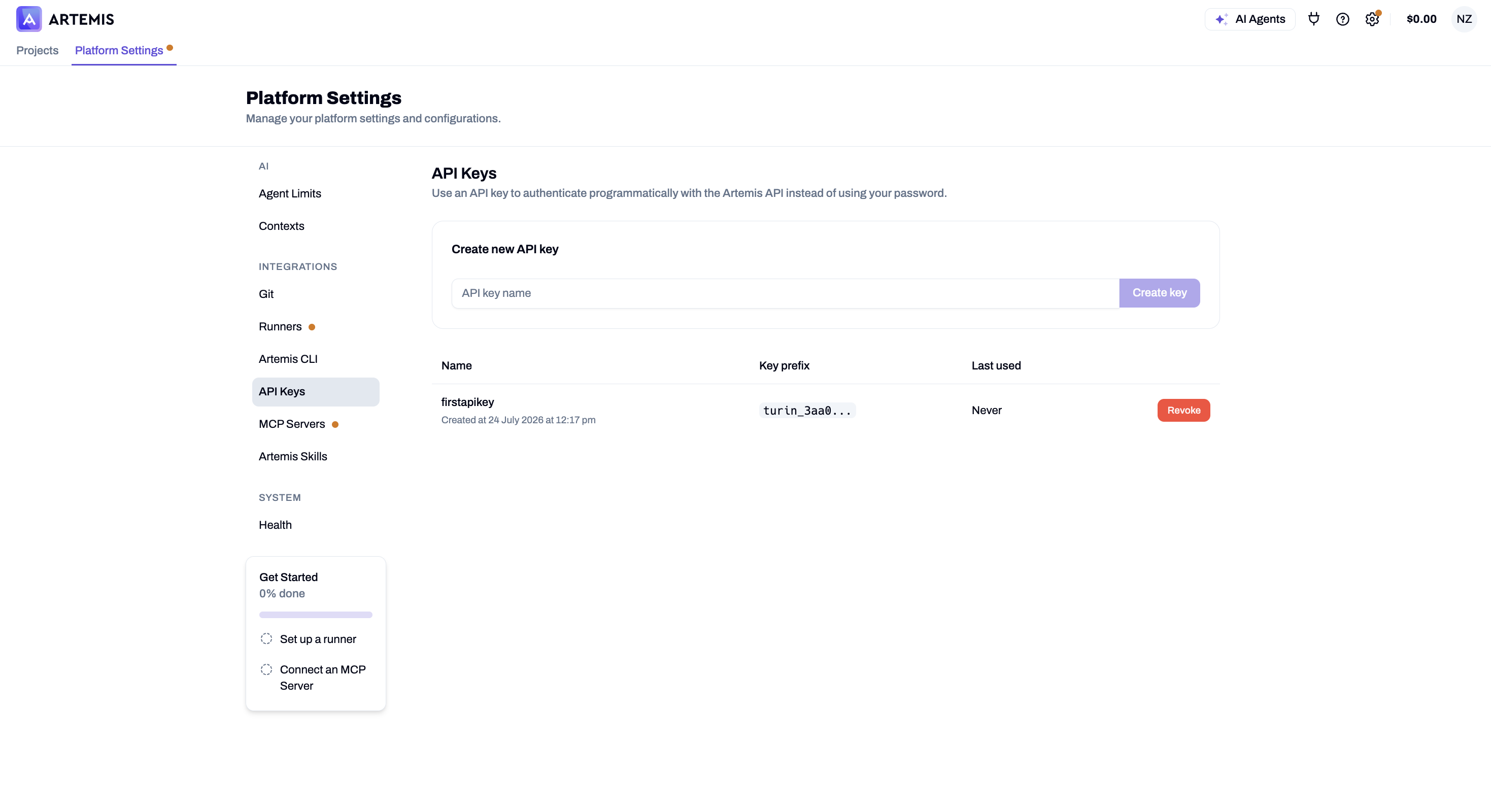
Generate and manage personal API keys for authenticating with the Artemis CLI and external integrations.
MCP Servers
Configure Model Context Protocol (MCP) servers for your account. Configured servers are available across all agent runs — chat, planning, coding, and target generation. Only HTTP-based transports are supported (SSE and Streamable HTTP).
See MCP Servers for configuration details.
Artemis Skills
Skills are Claude Code plugins that guide you through setting up and configuring Artemis directly from your terminal.
See Artemis Agent Skills for available skills and installation.
System
Health
Monitor the real-time status of all Artemis platform microservices and their dependencies.
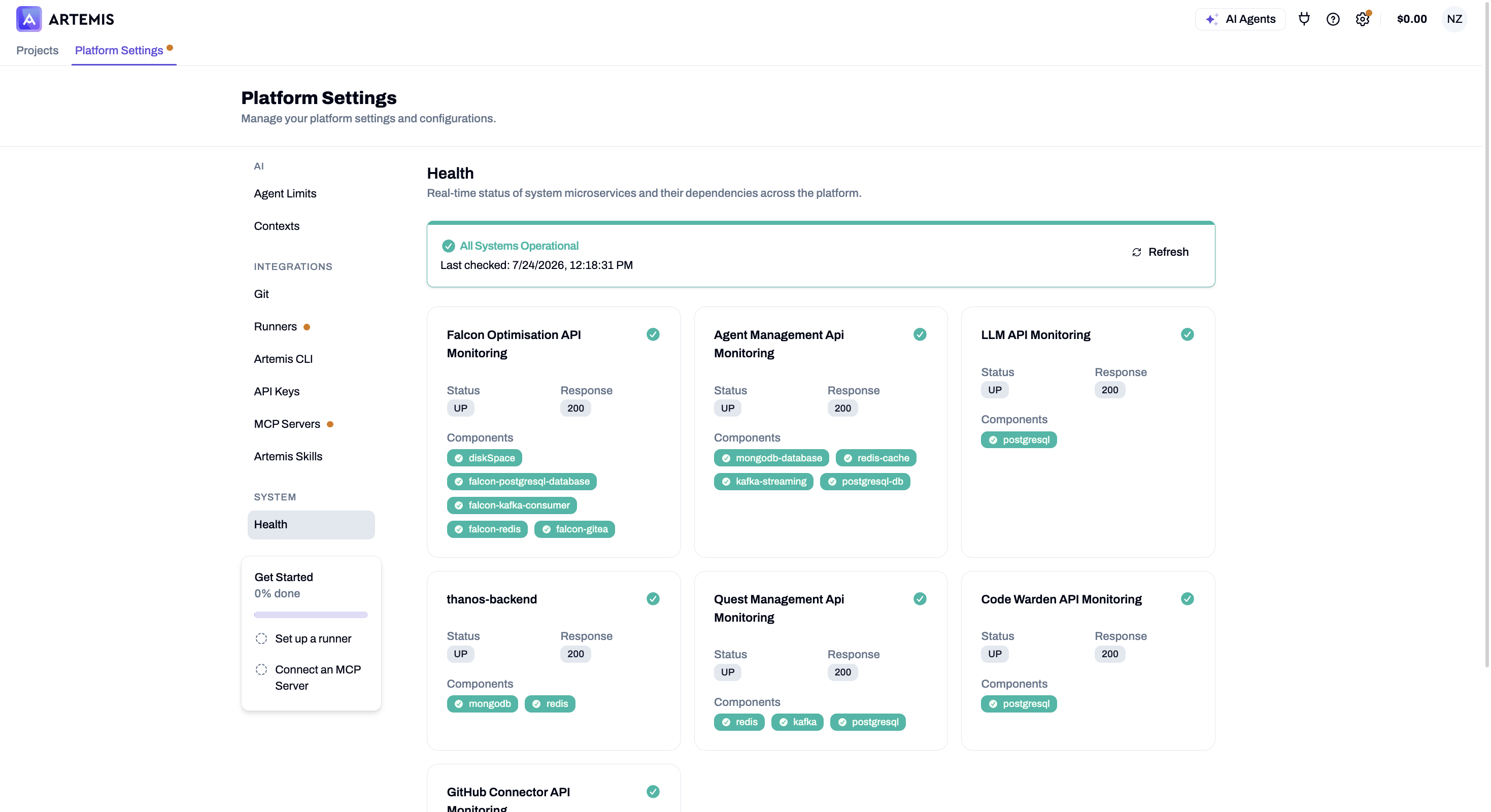
The Health dashboard shows each service's operational status, component count, and HTTP response codes. Click Refresh to get the latest status.
If you are an organisation administrator, additional settings are available for cost tracking, model governance, and user management. See Admin & Governance Settings.