Code Audit
Follow this workflow to run comprehensive code audits on a locally deployed Artemis instance that uses the on-device Qwen 3 4B model for AI assistance.
Prerequisites
Artemis is installed on a high-performance Intel® laptop with local GPU acceleration (see Deployment Options). All large language models are running locally (this example uses Qwen 3 4B model). Internet access is optional; audit scans run entirely offline.
Outline
This guide covers the following steps:
Step 1: Import and Open the Project: Set up your project for scanning.
Step 2: Register the Local Runner: Configure the runner for validations and benchmarks.
Step 3: Review and Configure Rules: Adjust rule importance levels and enable/disable rules.
Step 4: Add Custom Rules with Local AI Assistance: Create custom rules using the local Qwen 3 4B model.
Step 5: Run the Analysis: Trigger scan and select files to analyze.
Step 6: Review Findings: Examine identified issues by category and severity.
Step 7: Prioritise with AI (BETA): Use AI to rank issues by impact and effort.
Step 8: Code Audit Findings: Choose remediation path for identified issues.
Step 9: Fix as Background Task: Queue automated fixes using background tasks.
Step 10: Fix as Planning Task: Use Planning Agent to design resolution strategies.
Workflow
Step 1: Import and Open the Project
Select one of the following options to add code to Artemis:
- Import a sample project:
- Click
Import Projectto use a pre-existing sample (see Figure 1). - Select a project and click
Import(see Figure 2). If the import isn't working, set up git credentials or disableUse Git Credentials. - Open the imported project (see Figure 3).
- Click
- Upload a project zip file:
- Click
New Project. - Click
Upload a zip file with your code. - Open the uploaded project (see Figure 3).
- Click
- Import an existing project from GitHub:
- Click
New Project. - Select an existing project from your GitHub repository. For details on setting up git credentials, see the project setup guide.
- Open the imported project (see Figure 3).
- Click
- Create a new project with planning:
- Click
Plan New Repoto start a completely new project using the planner (BETA). For more details, see the planning guide. - Once the project is created, open it (see Figure 3).
- Click
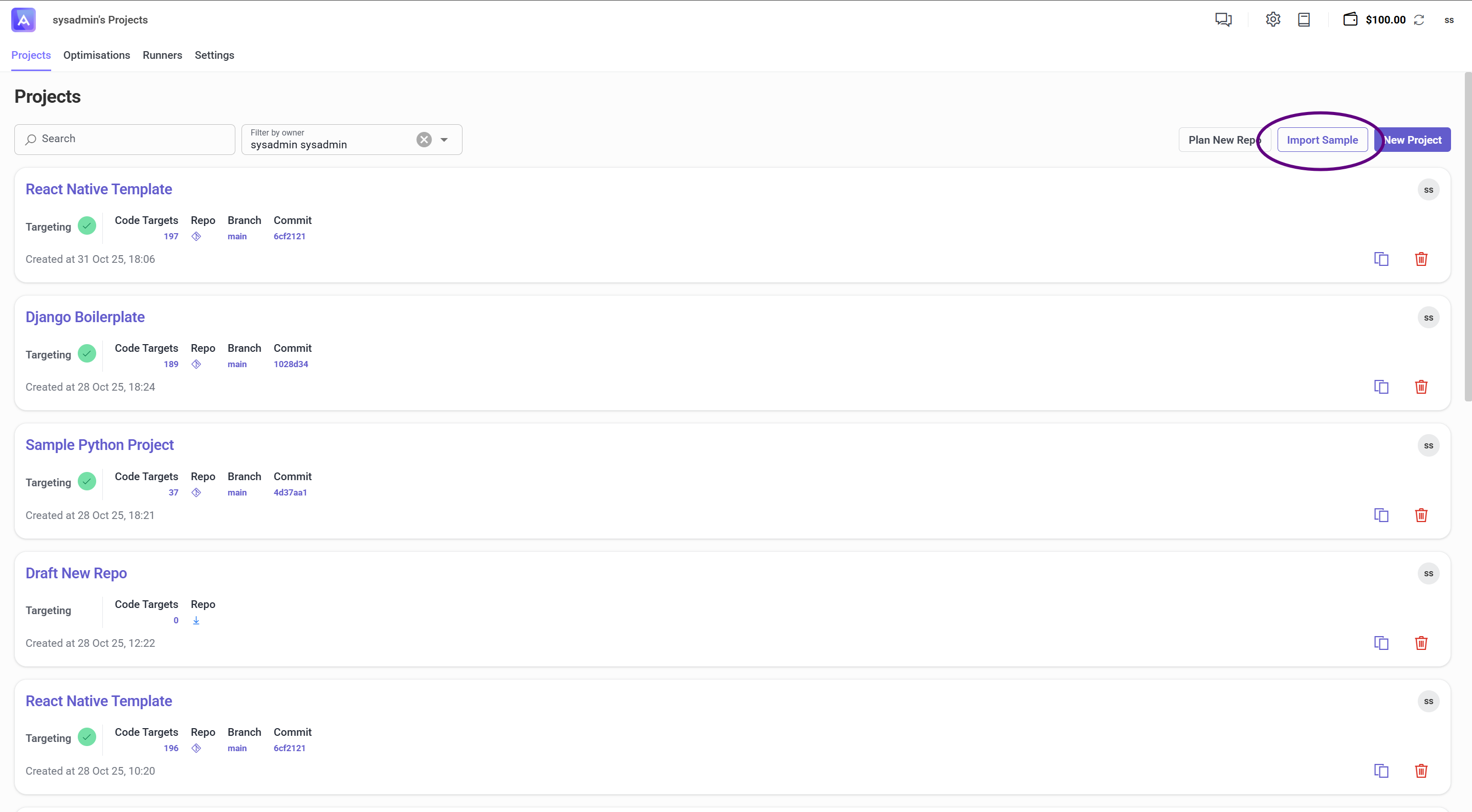
Figure 1: Select a sample project to import
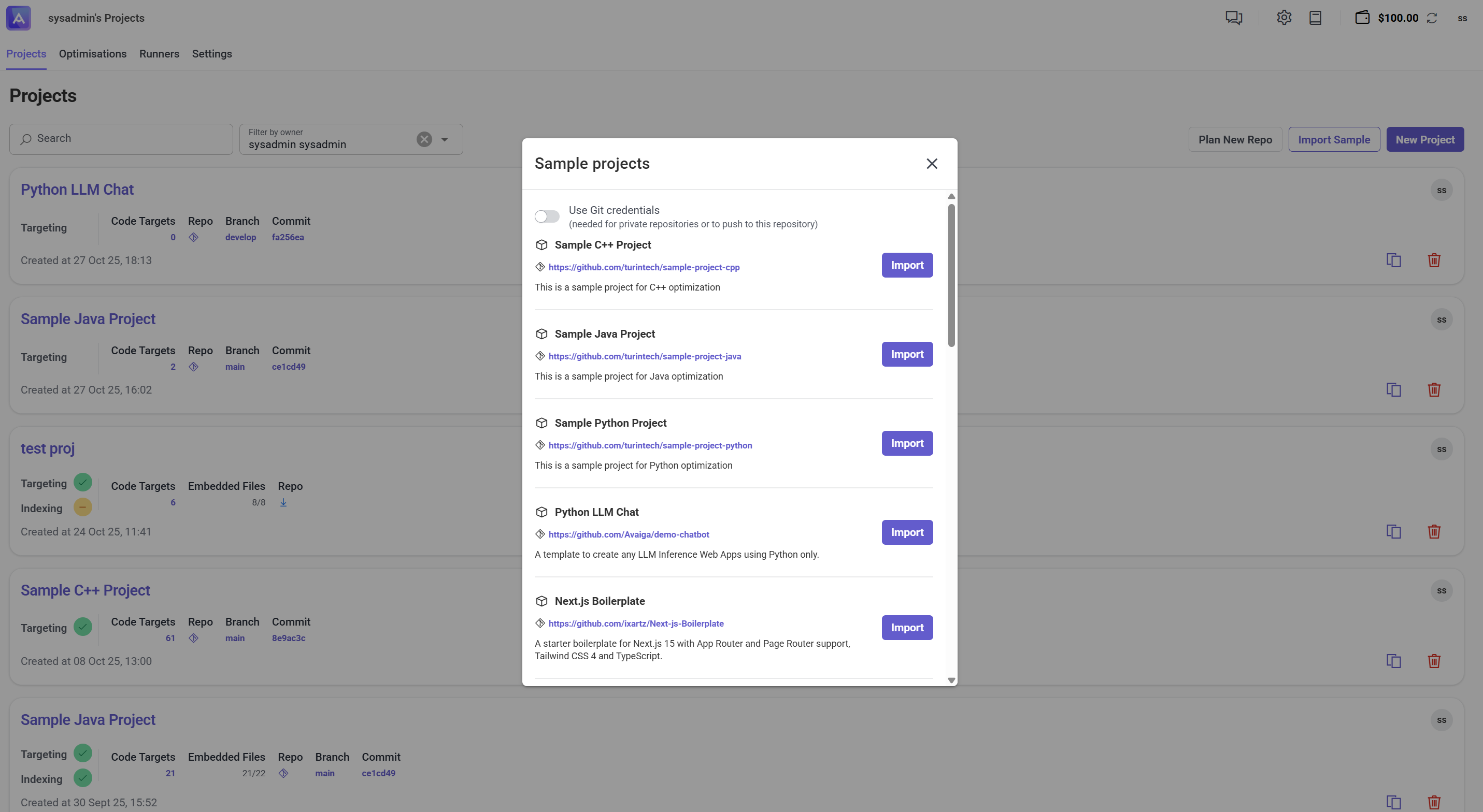
Figure 2: Sample project ready to import
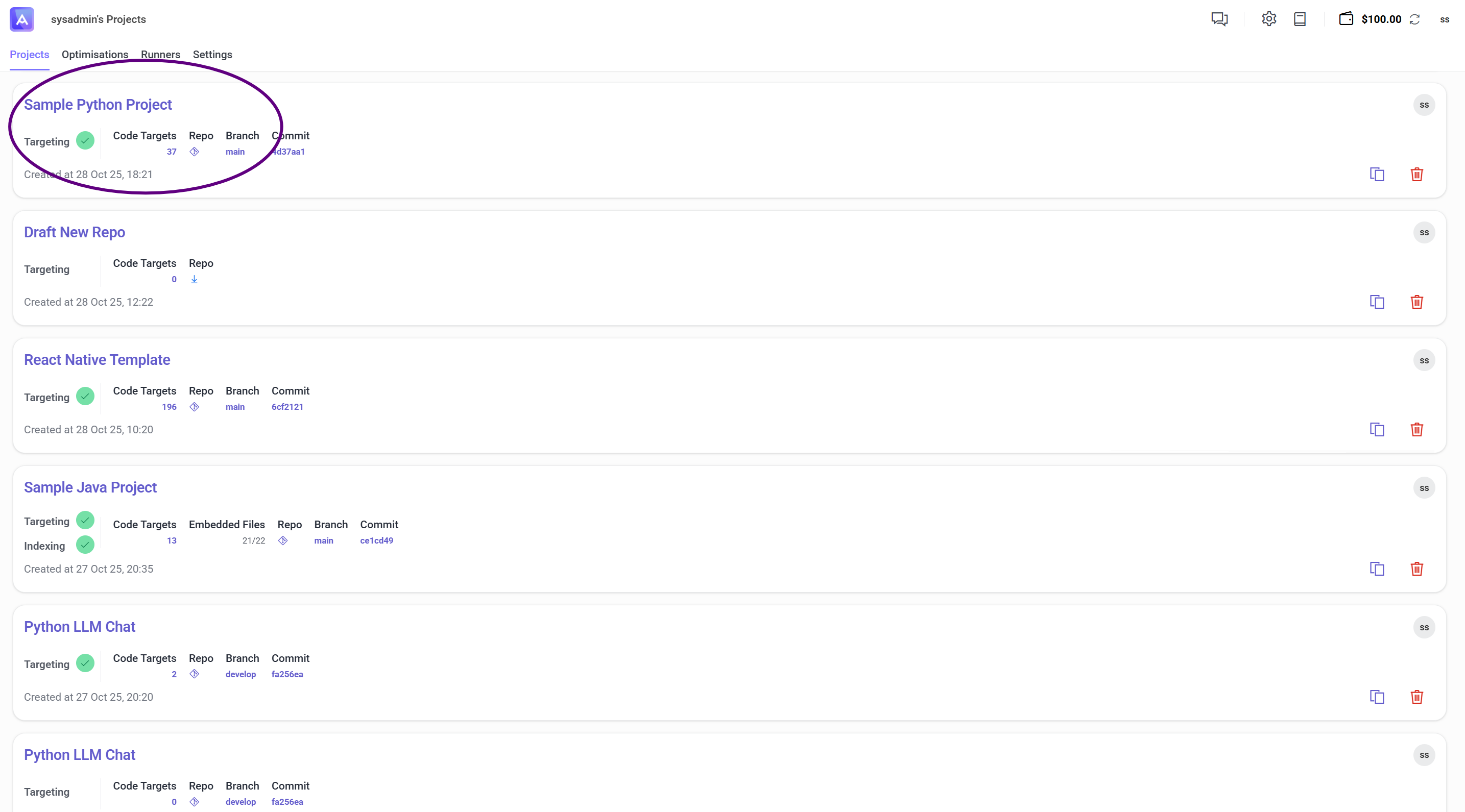
Figure 3: Imported project ready for scanning
Step 2: Register the Local Runner
Note: This step involves registering the Artemis Runner on the same machine to execute validations and benchmarks.
Artemis uses this runner to execute tests, benchmarks, and Artemis Intelligence workflows.
-
Open
Settings > Build(see Figure 4). -
Select the operating system that matches your host environment (Windows in this use case).
-
Copy the installation command displayed on the page and paste it into Windows PowerShell (see Figures 5 and 6). This command downloads and installs the runner on your local machine.
-
Start the runner using the command shown in Figure 7. When prompted in PowerShell, provide:
- A runner name (any free text identifier)
- Your Artemis credentials (username and password) to authenticate the runner
A successfully running runner appears as shown in Figure 8.
-
Once the runner is running, return to the
Settings > Buildpage in Artemis. Select the runner name from the available runners list to link it to your project.
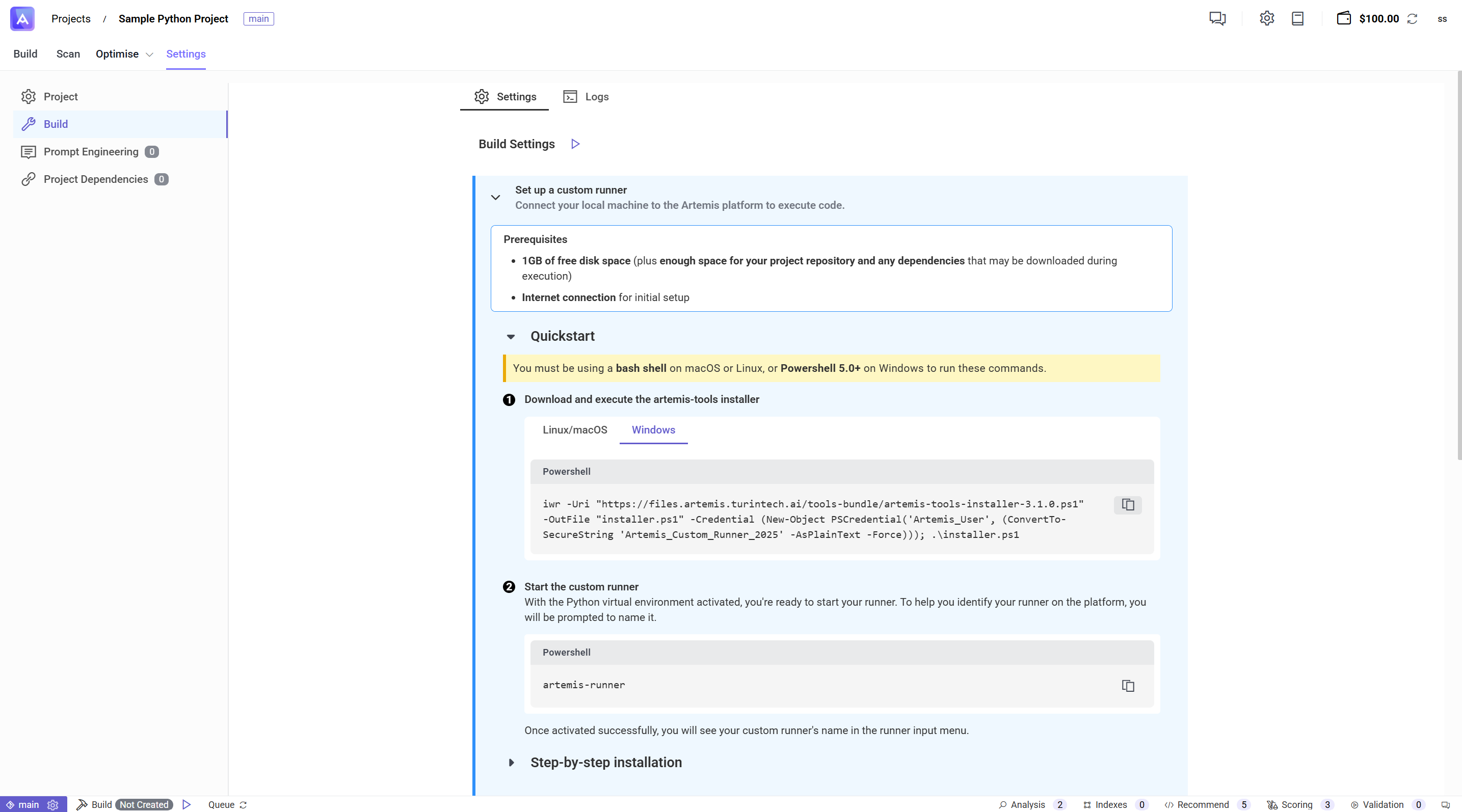
Figure 4: Copy the runner install command
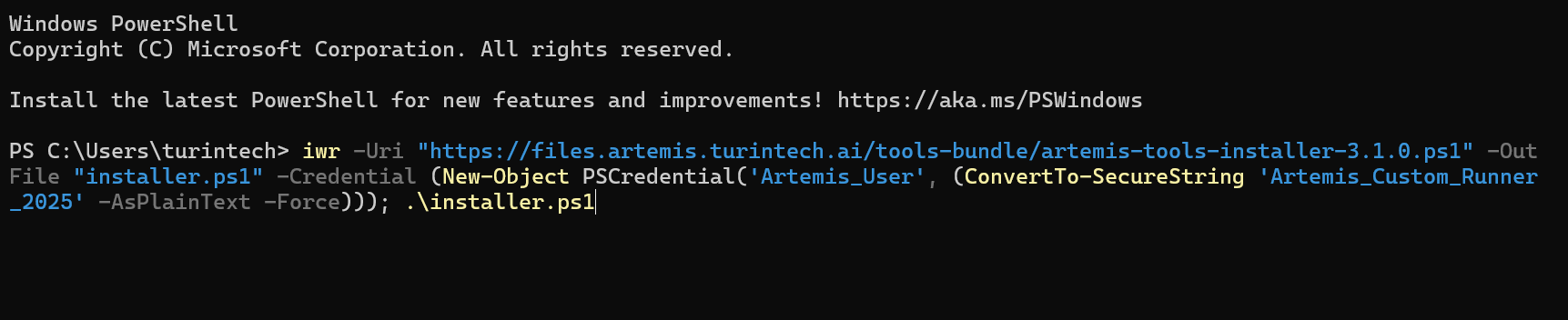
Figure 5: Runner installation command in PowerShell
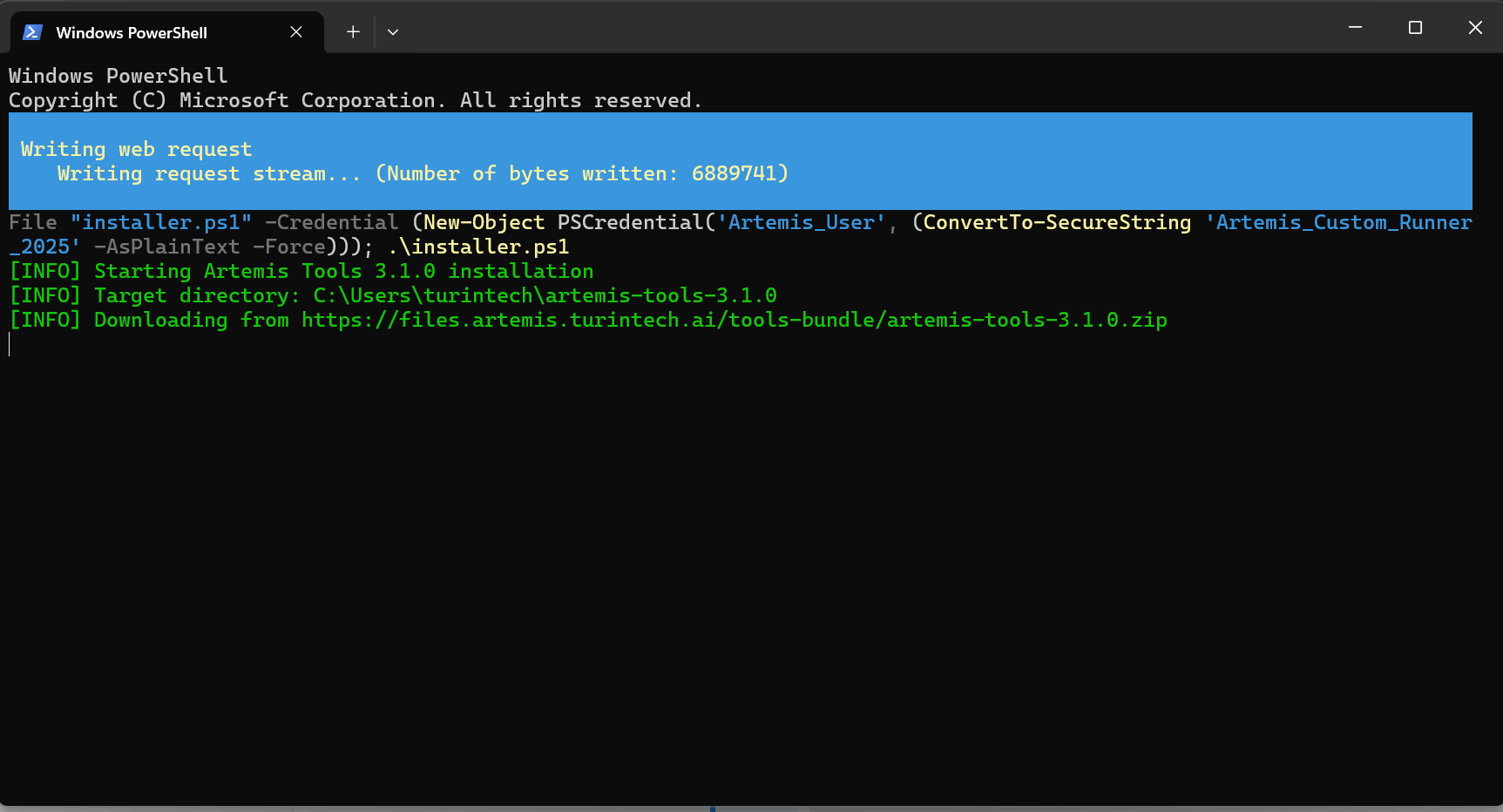
Figure 6: Runner installing
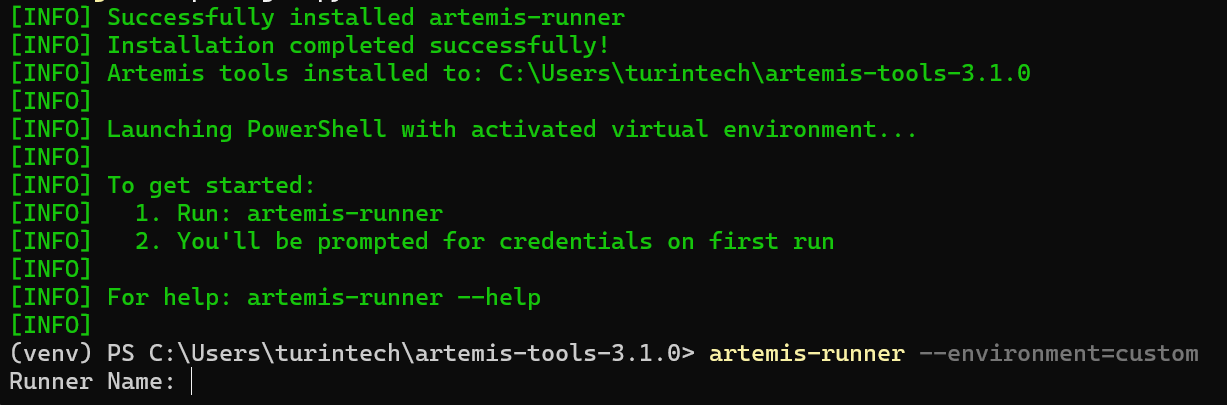
Figure 7: Start runner
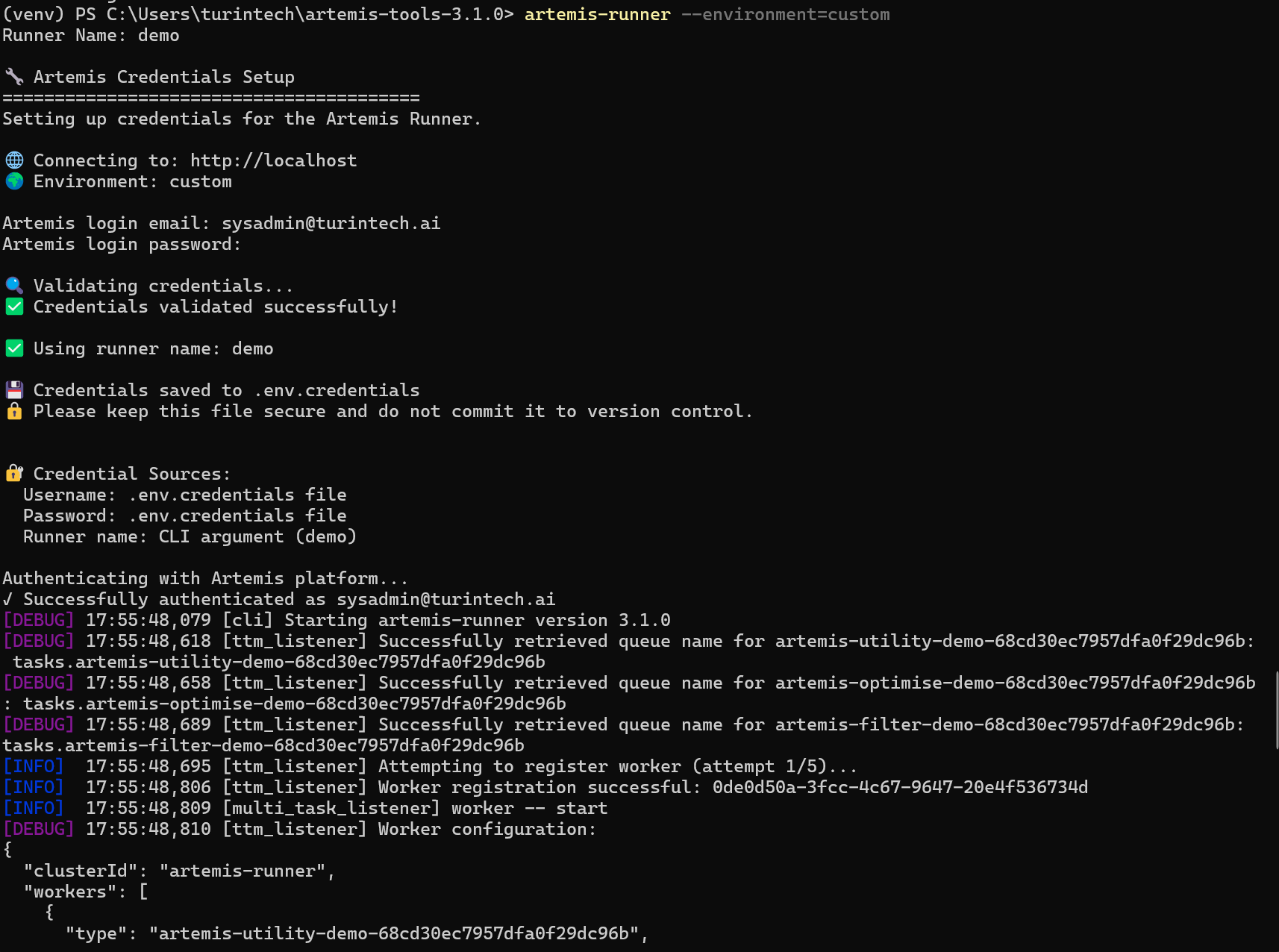
Figure 8: Runner is online and ready
Step 3: Review and Configure Rules
- The rules table displays built-in rules grouped by category (e.g., Security, Best Practices, Performance, and more). If necessary:
- Adjust importance levels to match your local policies by clicking on a rule and selecting the importance level (see Figure 9).
- Enable or disable rules depending on the target project's needs.
- Add a new custom rule (see Step 4).
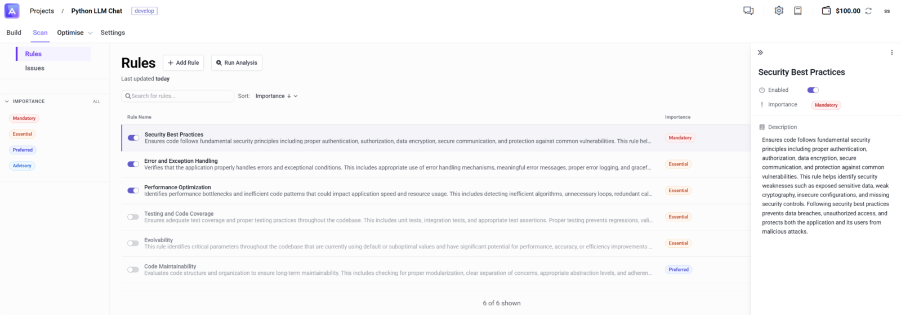
Figure 9: Select and weight scan rules
Step 4: Add Custom Rules with Local AI Assistance
- Click
Add Rule. - Provide the rule name and a description of the rule. Optionally, click
Generate with AIto help you write the description using the local Qwen 3 4B model (see Figure 10). - Update the importance level and decide whether you want to enable the rule by default.
- Click
Create Rule.
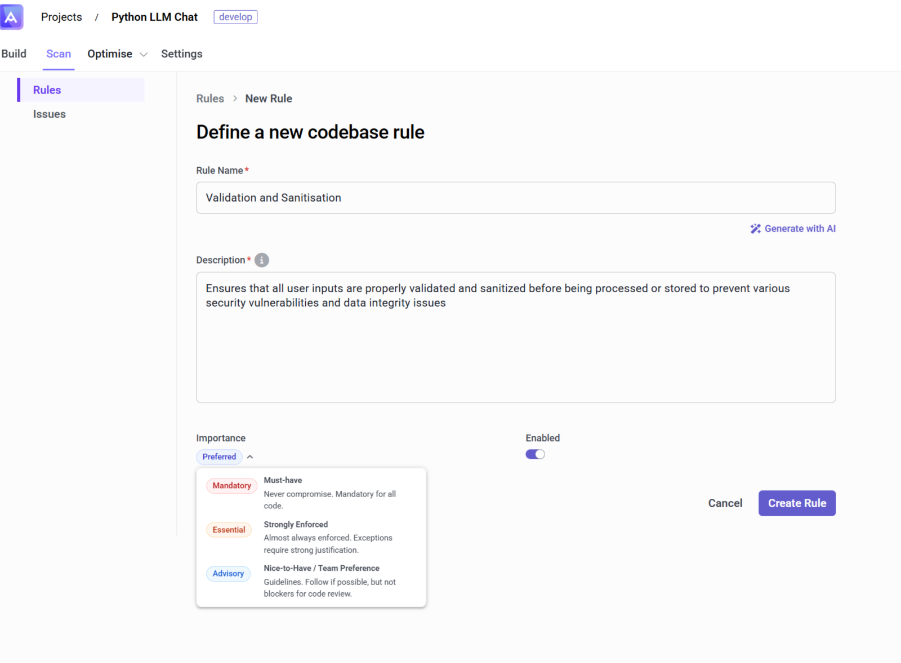
Figure 10: Create a new scan rule with AI assistance
Step 5: Run the Analysis
- Start scan by clicking
Run Analysis(see Figure 11). - When prompted (see Figure 12), confirm the list of files or directories to include. Artemis processes the scan locally and streams progress in the Scan tab.

Figure 11: Click Run Analysis
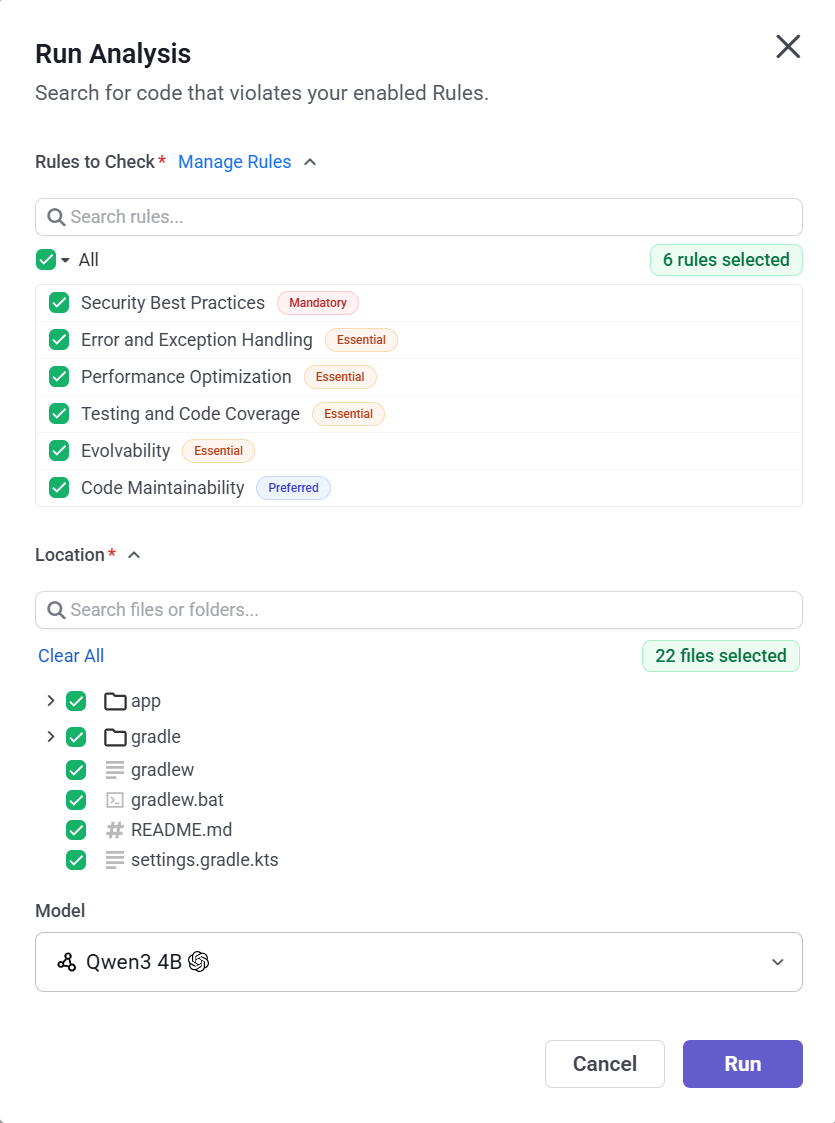
Figure 12: Select files for analysis
Step 6: Review Findings
- Issues are grouped by category and severity (Critical, High, Medium, Low) (see Figure 13).
- Each issue includes:
- A description of the issue
- The file path and line number where the issue was found
- Remediation guidance and suggested fixes
- Use filters to focus on specific severities or categories. You can also sort by severity, file, or rule type to help prioritize your review.
- Click on an issue to view detailed information and available remediation options.
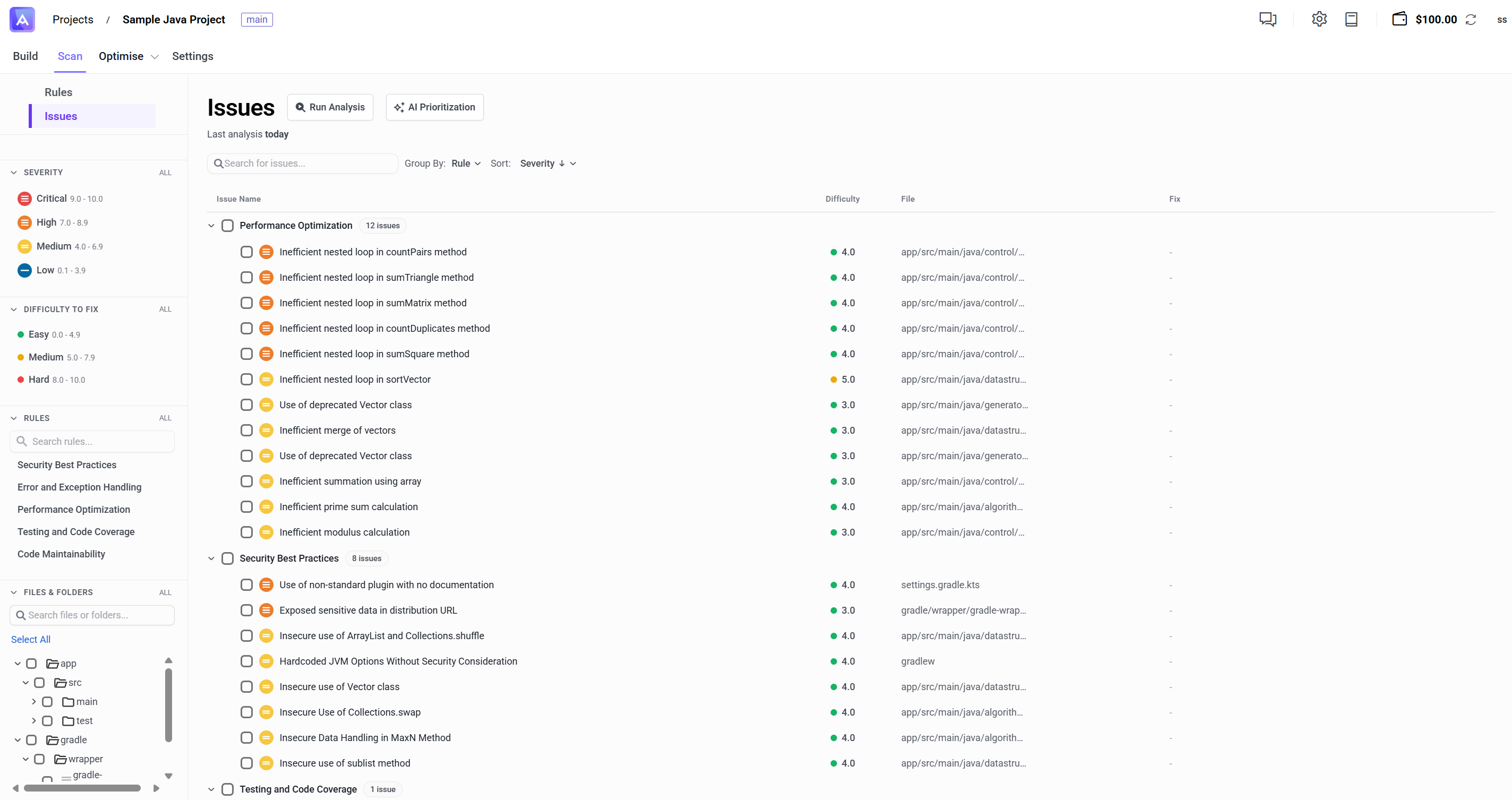
Figure 13: Run code audit analysis
Step 7: Prioritise with AI (BETA)
- Click
AI Prioritisationto activate AI-powered issue ranking. - Artemis leverages the local LLM to analyze each issue and rank them based on:
- Impact: How critical the issue is to your application's security, performance, or functionality
- Estimated effort: How much time and complexity is required to fix the issue
- Review the prioritised list. Issues are reordered with the most impactful and easiest-to-fix issues at the top.
- Use this prioritised list to decide which issues to tackle first, maximizing your remediation efficiency.
Step 8: Code Audit Findings
Choose the remediation path that fits your workflow:
- Fix as Background Task: See Step 9.
- Fix as Planning Task: See Step 10.
Step 9: Fix as Background Task
- Select an issue and click
Fixto queue an automated fix (see Figure 14). Artemis runs the fix as a background task. - Once the background task is complete, a draft fix will be available (see Figure 15).
- Select the generated draft and review the changes. Note: You can interact with the chat to edit the draft or to understand what changes were made and why.
- Click
Create Pull Requestto integrate the fix into your repository.
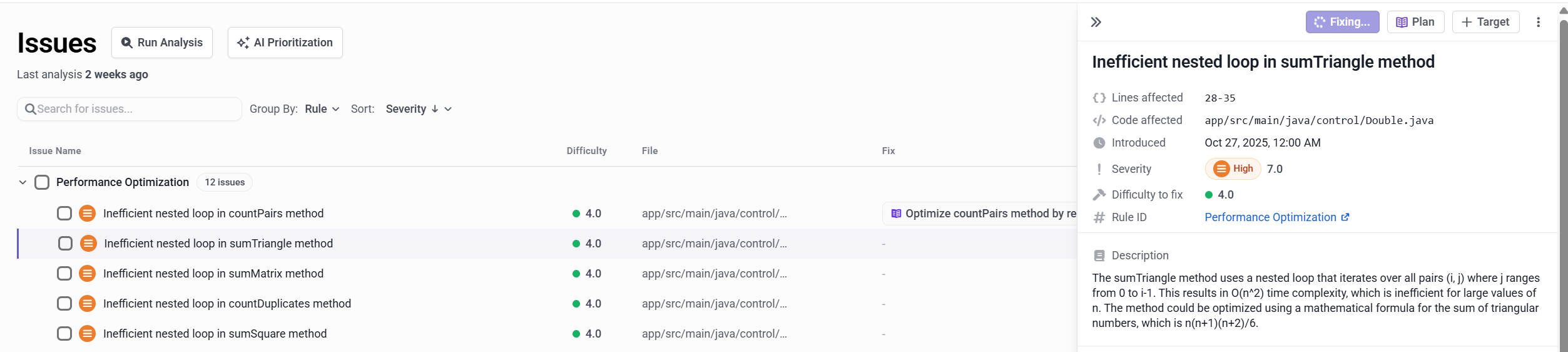
Figure 14: Fix issue as background task

Figure 15: Fix draft ready
Step 10: Fix as Planning Task
- Select the
Planningoption to open the issue in the planning workspace (see Figure 16). - Collaborate with the Planning Agent (human-in-the-loop) to design a resolution strategy (see Figure 17). The Planning Agent will ask questions and generate a structured plan to address the issue.
- Review the generated plan and approve or request revisions. Once the plan is executed, the fix will be complete (see Figure 18).
- The fix is automatically published to your Git repository.
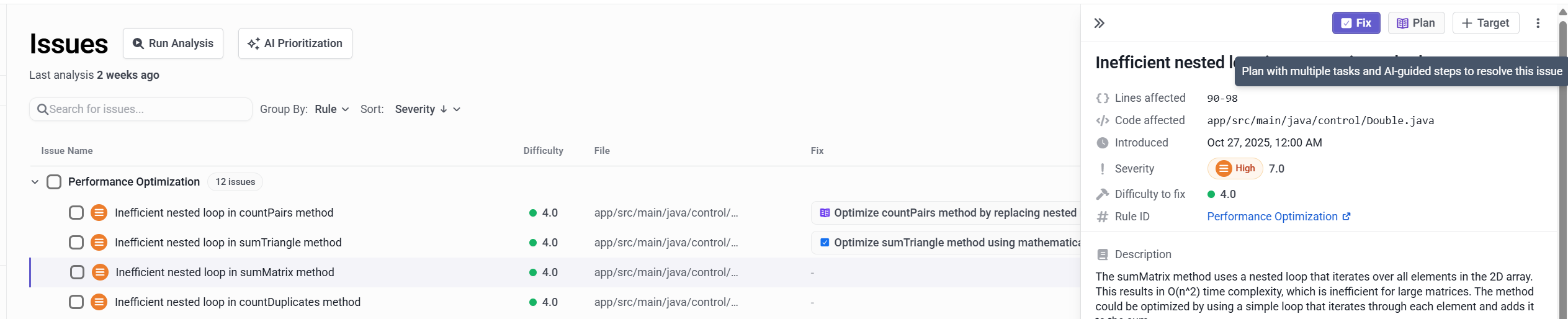
Figure 16: Select fix using planning agent
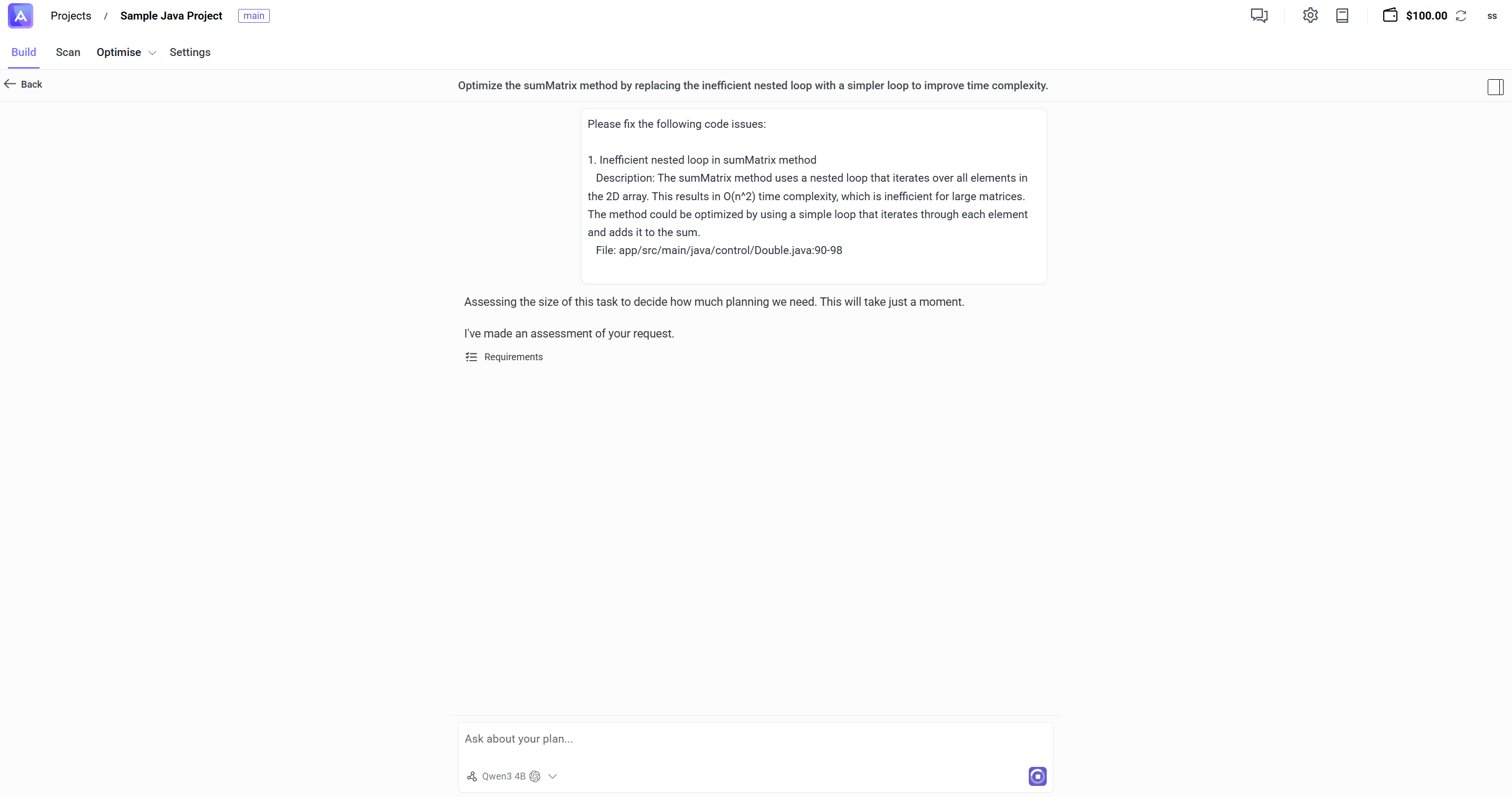
Figure 17: Planning agent running

Figure 18: Fix complete
Next Steps
- Learn more about Scan rules and best practices for structuring policies
- Explore Issue management to triage and track remediation work
- Review the Scan overview for additional auditing capabilities
- Use the Planning Agent for strategic feature development
- Explore your codebase with Agentic Chat to understand project structure and find related code