Standalone Optimisation
Use this guide to run the Standalone Optimisation workflow on a locally deployed instance of Artemis that is powered by an on-device Qwen 3 4B model.
Prerequisites
Artemis is installed on a high-performance Intel® laptop with local GPUs (see Deployment Options). All large language models are running locally (this example uses Qwen 3 4B model). Internet access is optional; optimisation runs directly on your hardware.
Outline
This guide covers the following steps:
Step 1: Import a Local Project: Set up your project in Artemis.
Step 2: Register the Local Runner: Configure the runner for validations and benchmarks.
Step 3: Enter Standalone Optimisation: Navigate to the optimisation workspace.
Step 4: Select Files and Create Targets: Choose code to optimise.
Step 5: Review Targets: Review generated targets and choose optimisation approach.
Step 6: Score Code Blocks: Evaluate code quality metrics.
Step 7: Explore with Contextual Chat: Interact with your code using AI.
Step 8: Generate One-Shot Code Updates: Create quick code improvements.
Step 9: Produce Multi-Version Optimisations with Artemis Intelligence: Generate and compare multiple optimisation candidates.
Step 10: Integrate Optimisations: Export, download, or create a pull request for your optimisations.
Workflow
Step 1: Import a Local Project
Note: This step involves importing a sample project (for example, Sample Python Project) or your own repository into Artemis.
Select one of the following options to add code to Artemis:
- Import a sample project:
- Click
Import Projectto use a pre-existing sample (see Figure 1). - Select a project and click
Import(see Figure 2). If the import isn't working, set up git credentials or disableUse Git Credentials. - Open the imported project (see Figure 3).
- Click
- Upload a project zip file:
- Click
New Project. - Click
Upload a zip file with your code. - Open the uploaded project (see Figure 3).
- Click
- Import an existing project from GitHub:
- Click
New Project. - Select an existing project from your GitHub repository. For details on setting up git credentials, see the project setup guide.
- Open the imported project (see Figure 3).
- Click
- Create a new project with planning:
- Click
Plan New Repoto start a completely new project using the planner (BETA). For more details, see the planning guide. - Once the project is created, open it (see Figure 3).
- Click
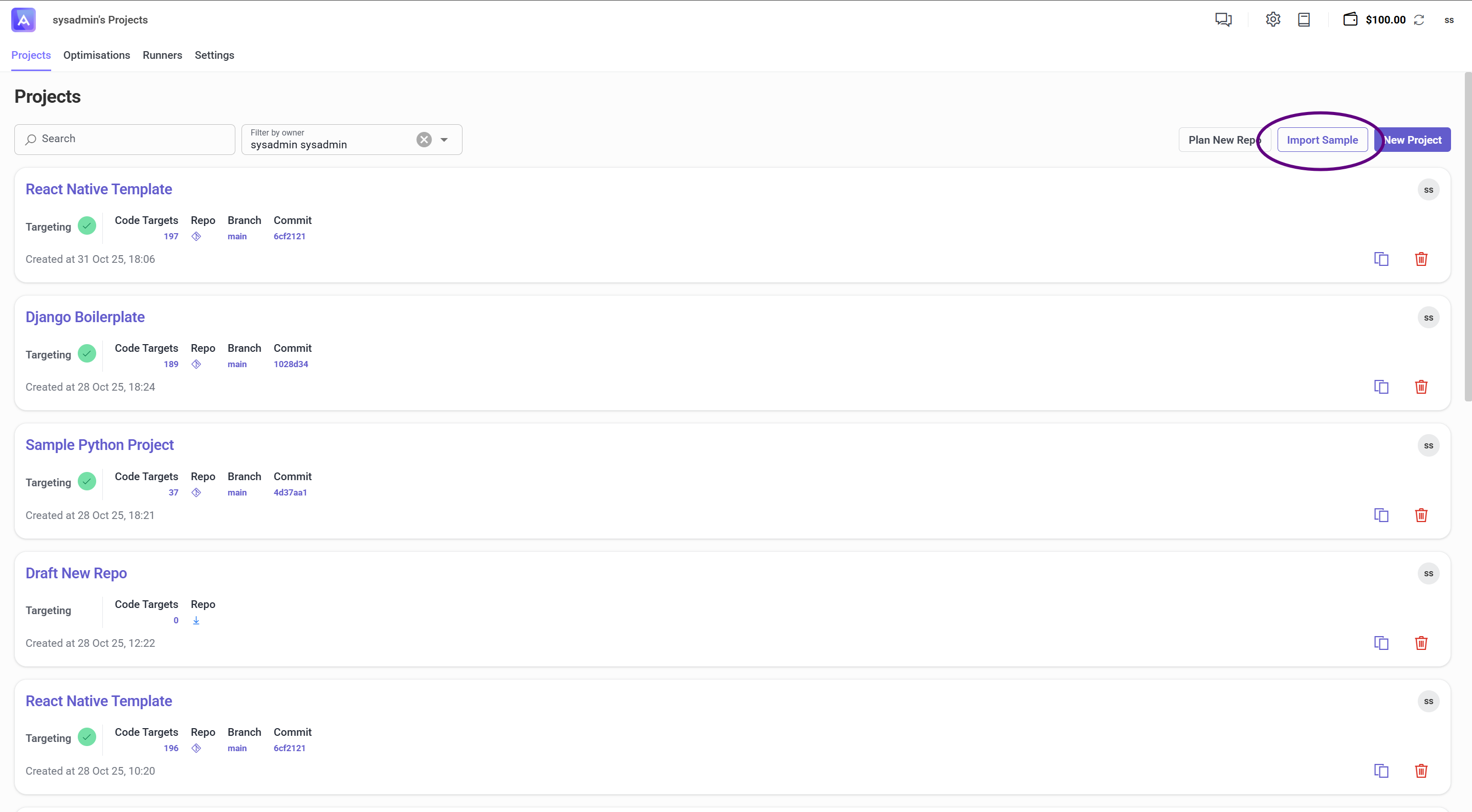
Figure 1: Select a sample project to import
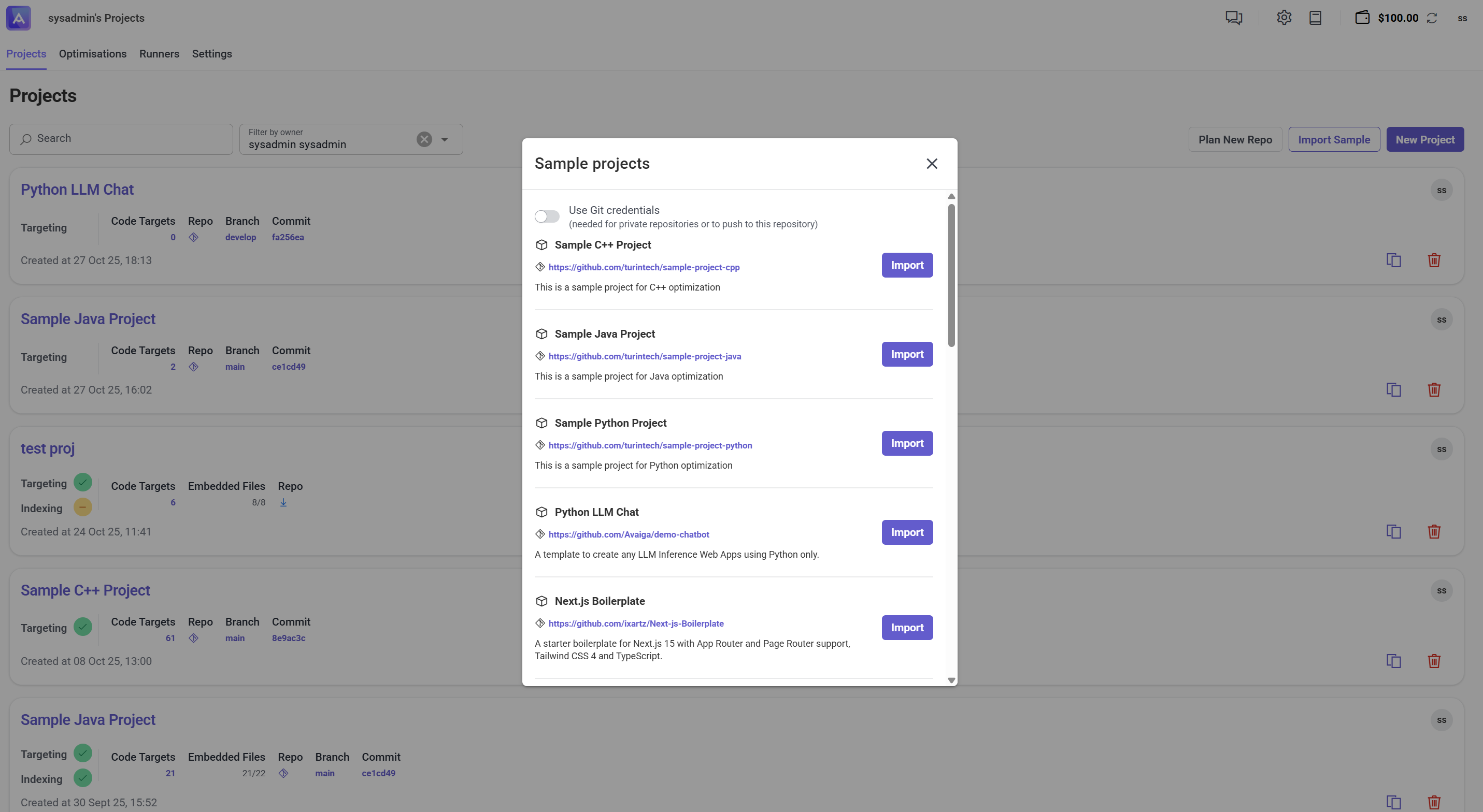
Figure 2: Sample project ready to import
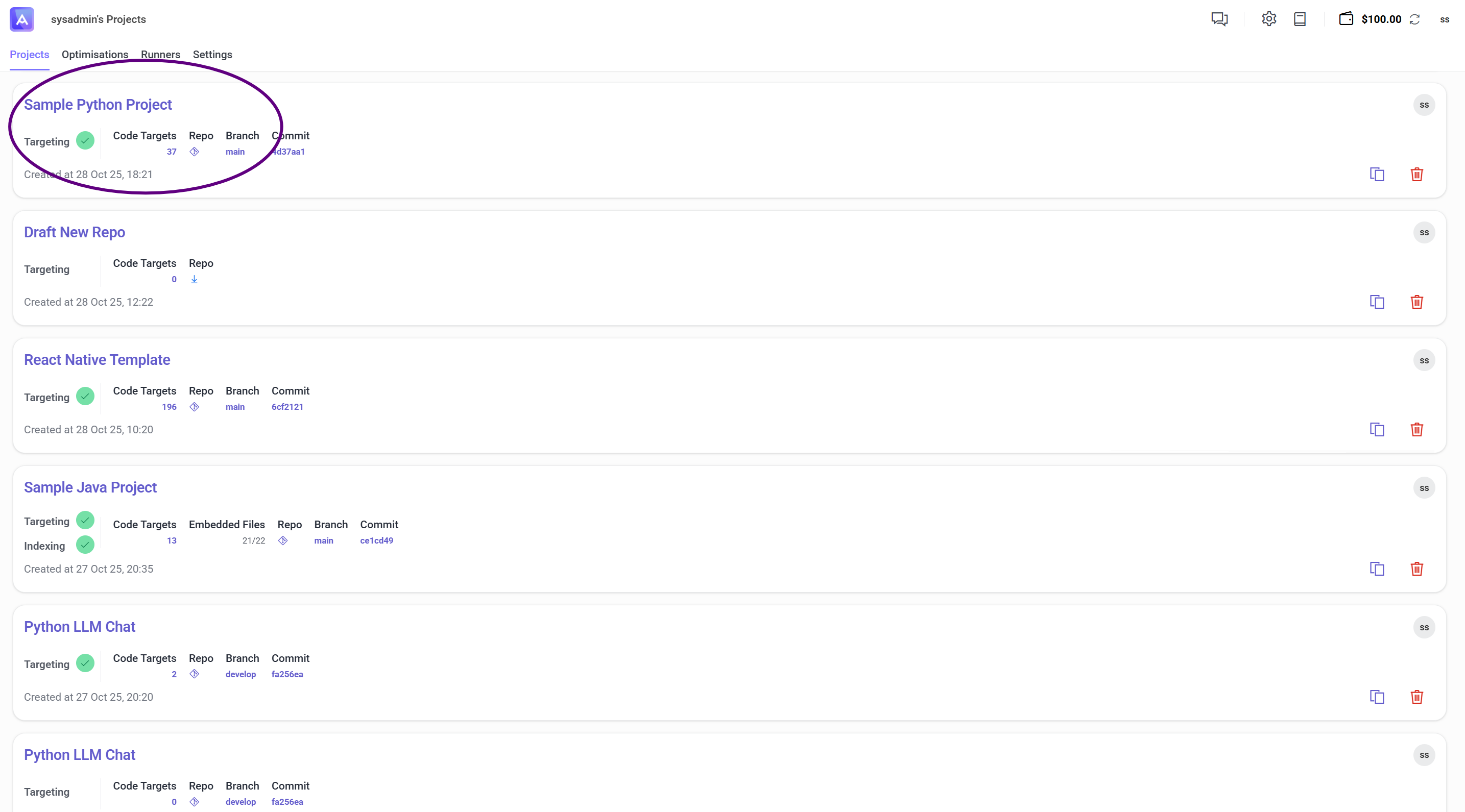
Figure 3: Imported project ready for optimisation
Step 2: Register the Local Runner
Note: This step involves registering the Artemis Runner on the same machine to execute validations and benchmarks.
Artemis uses this runner to execute tests, benchmarks, and Artemis Intelligence workflows.
-
Open
Settings > Build(see Figure 4). -
Select the operating system that matches your host environment (Windows in this use case).
-
Copy the installation command displayed on the page and paste it into Windows PowerShell (see Figures 5 and 6). This command downloads and installs the runner on your local machine.
-
Start the runner using the command shown in Figure 7. When prompted in PowerShell, provide:
- A runner name (any free text identifier)
- Your Artemis credentials (username and password) to authenticate the runner
A successfully running runner appears as shown in Figure 8.
-
Once the runner is running, return to the
Settings > Buildpage in Artemis. Select the runner name from the available runners list to link it to your project.
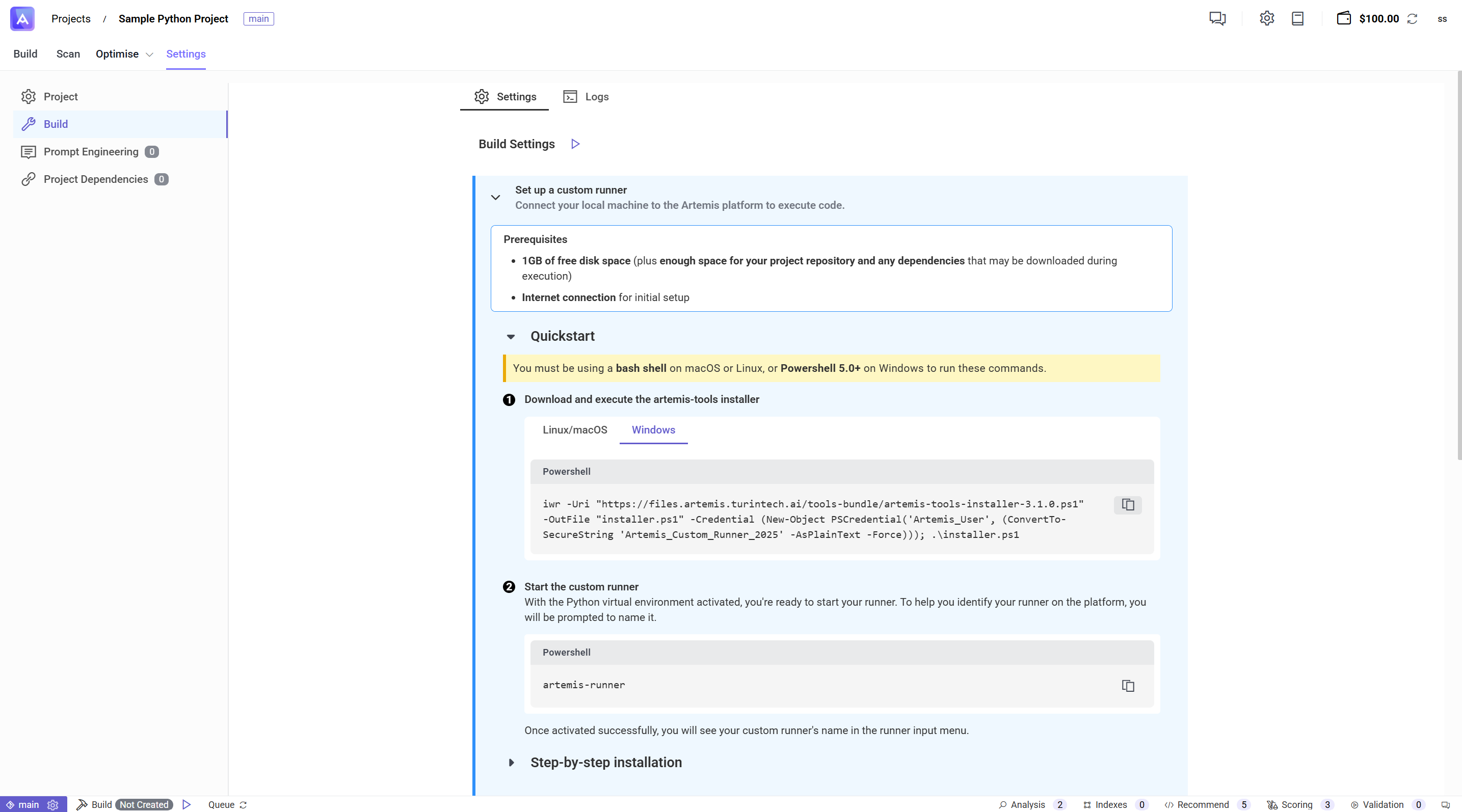
Figure 4: Copy the runner install command
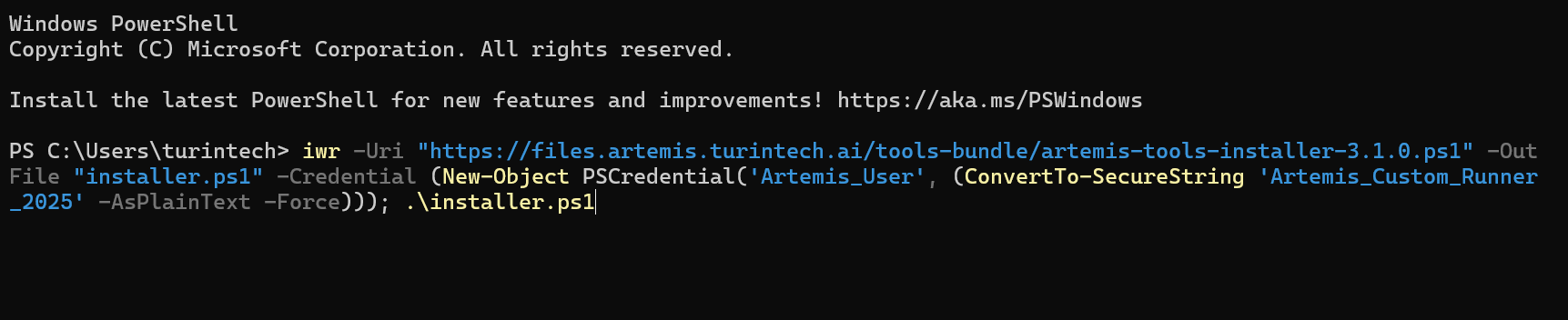
Figure 5: Runner installation command in PowerShell
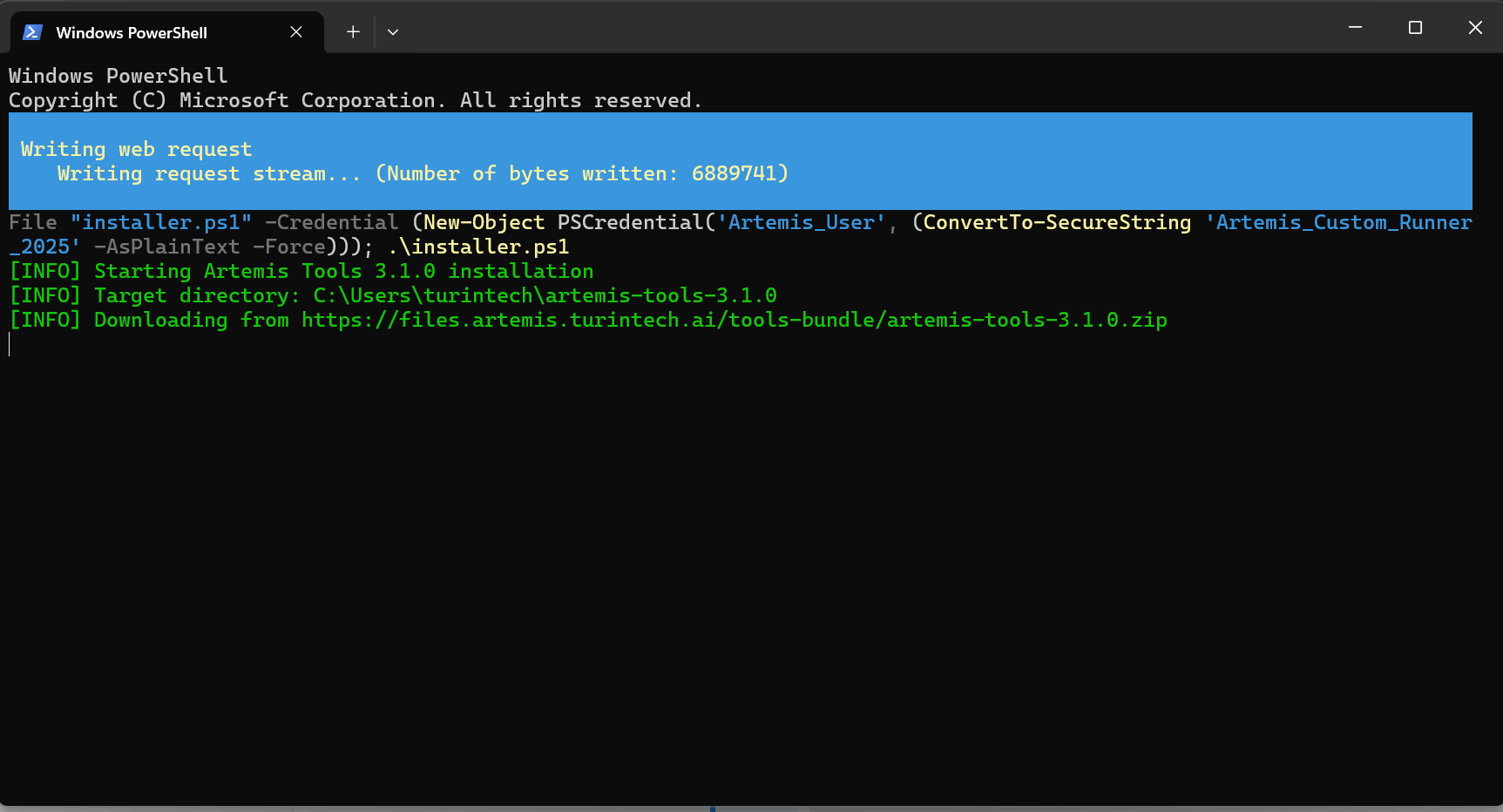
Figure 6: Runner installing
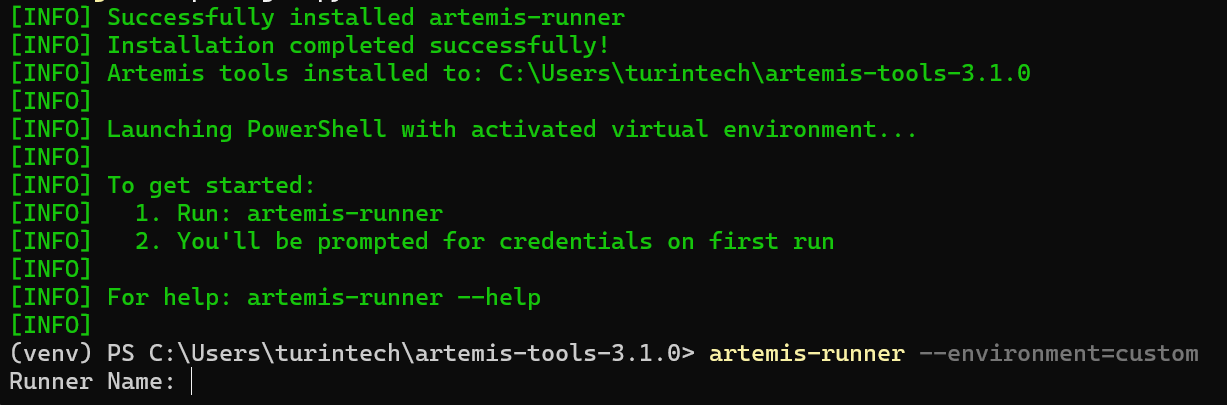
Figure 7: Start runner
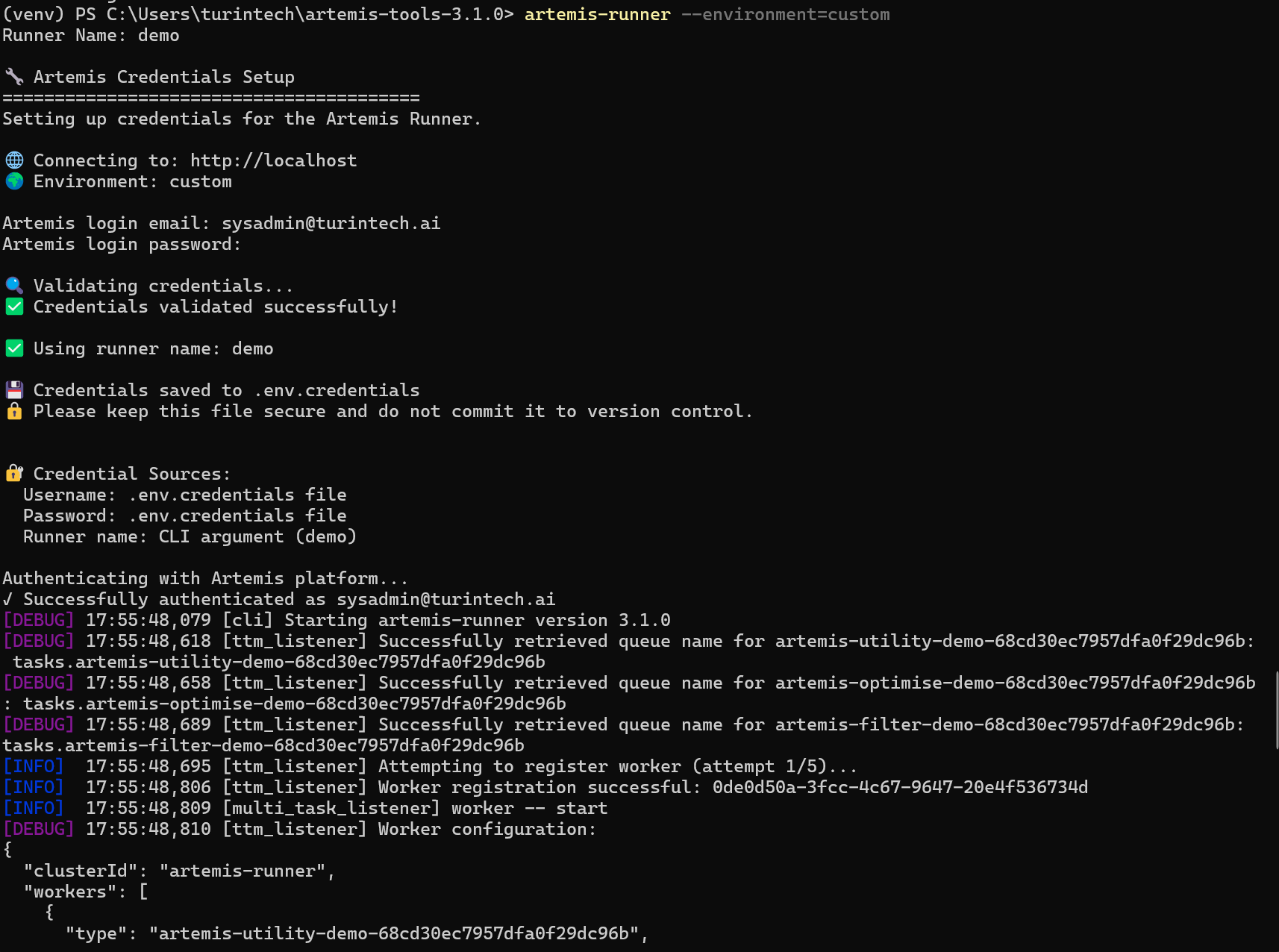
Figure 8: Runner is online and ready
Step 3: Enter Standalone Optimisation
- From
Projects, click the imported project. - Select
Optimise > Files(see Figure 9). This view lists targets, issues surfaced from scans, and existing standalone tasks.
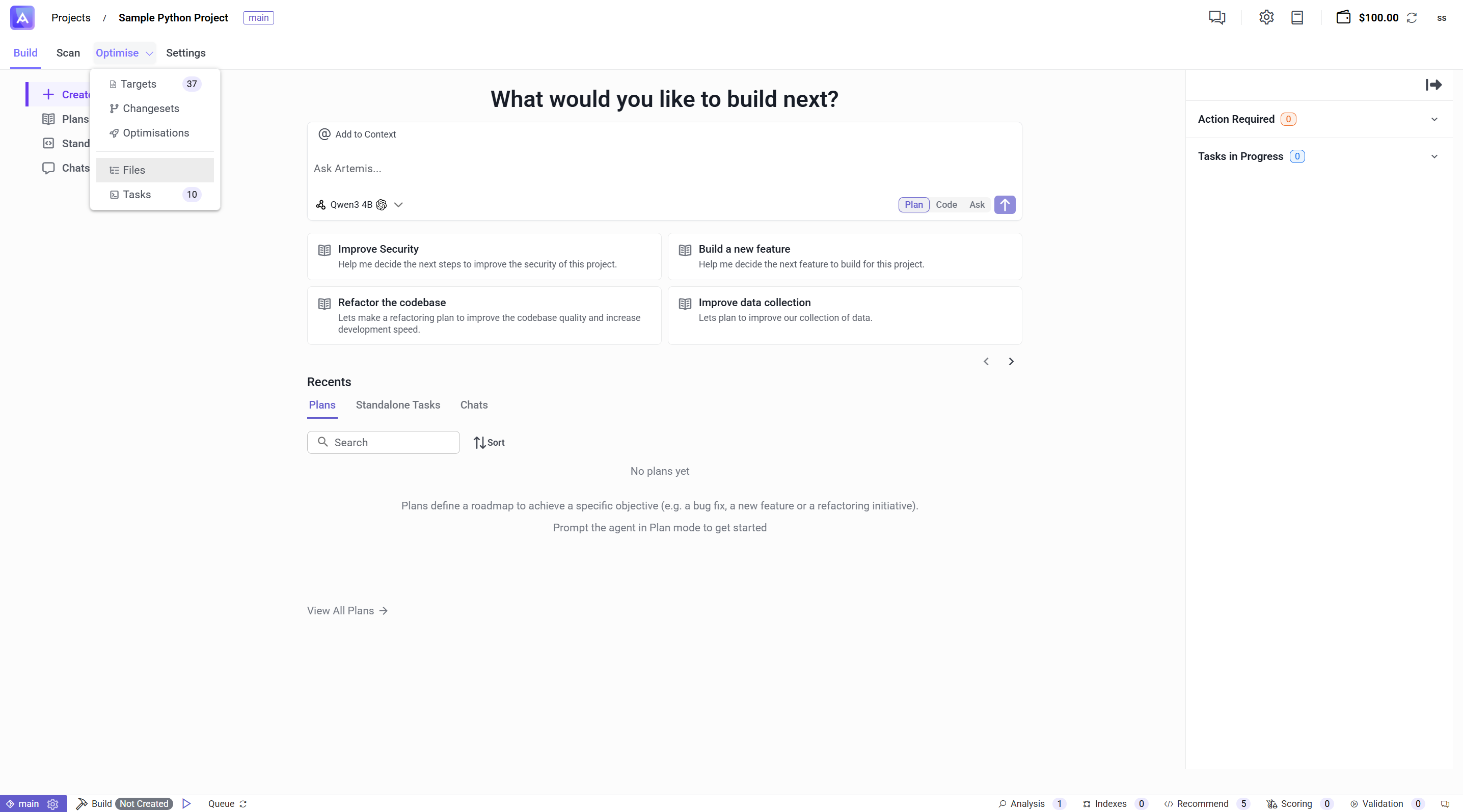
Figure 9: Open Optimise to work on local targets
Step 4: Select Files and Create Targets
- In
File Selection, highlight the files you want to optimise and clickContinue(see Figure 10). - Use filters (for example, File Type) to narrow the focus (see Figure 11), then click
Add Target. - Artemis displays the targets ready for optimisation (see Figure 12).
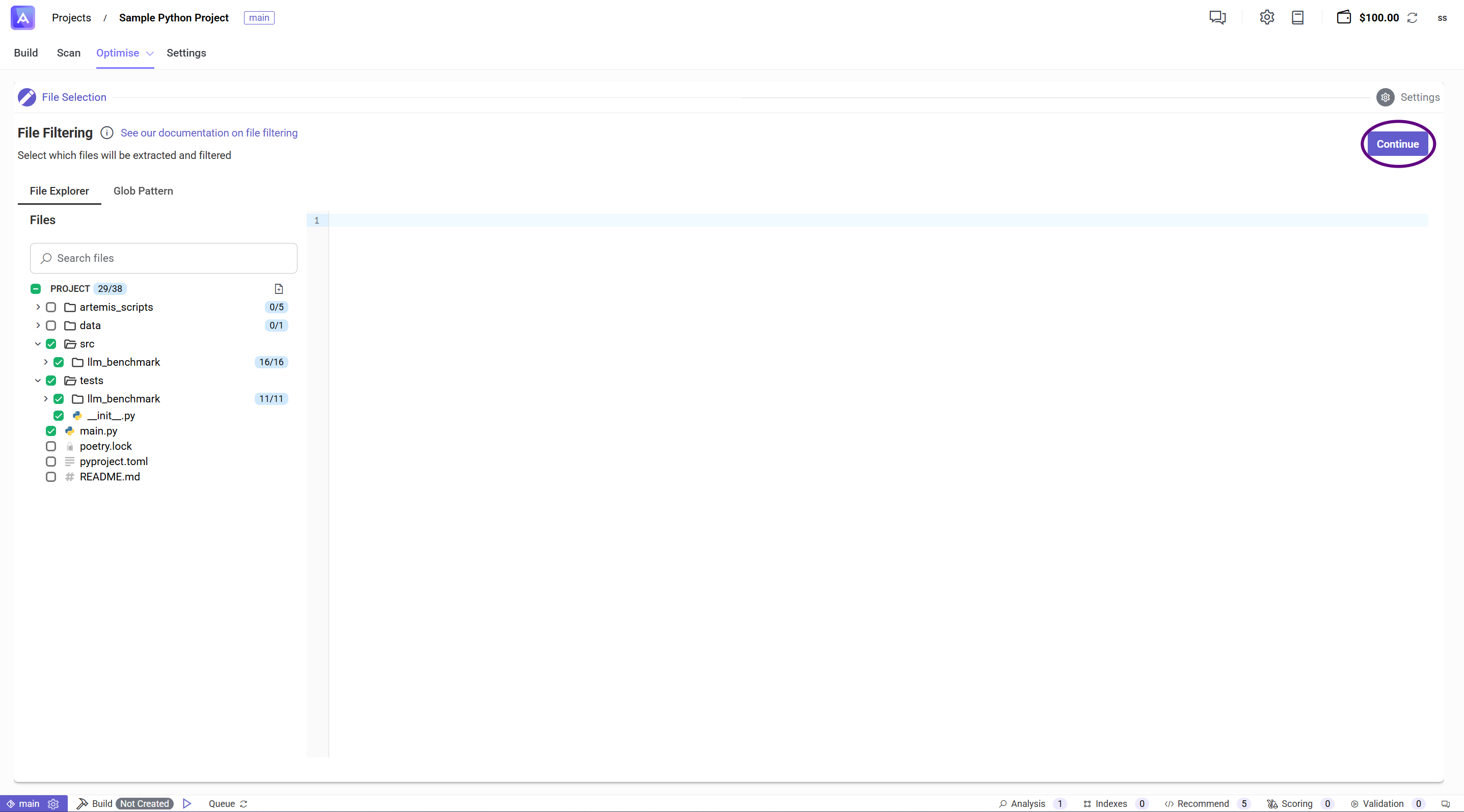
Figure 10: Choose files for optimisation
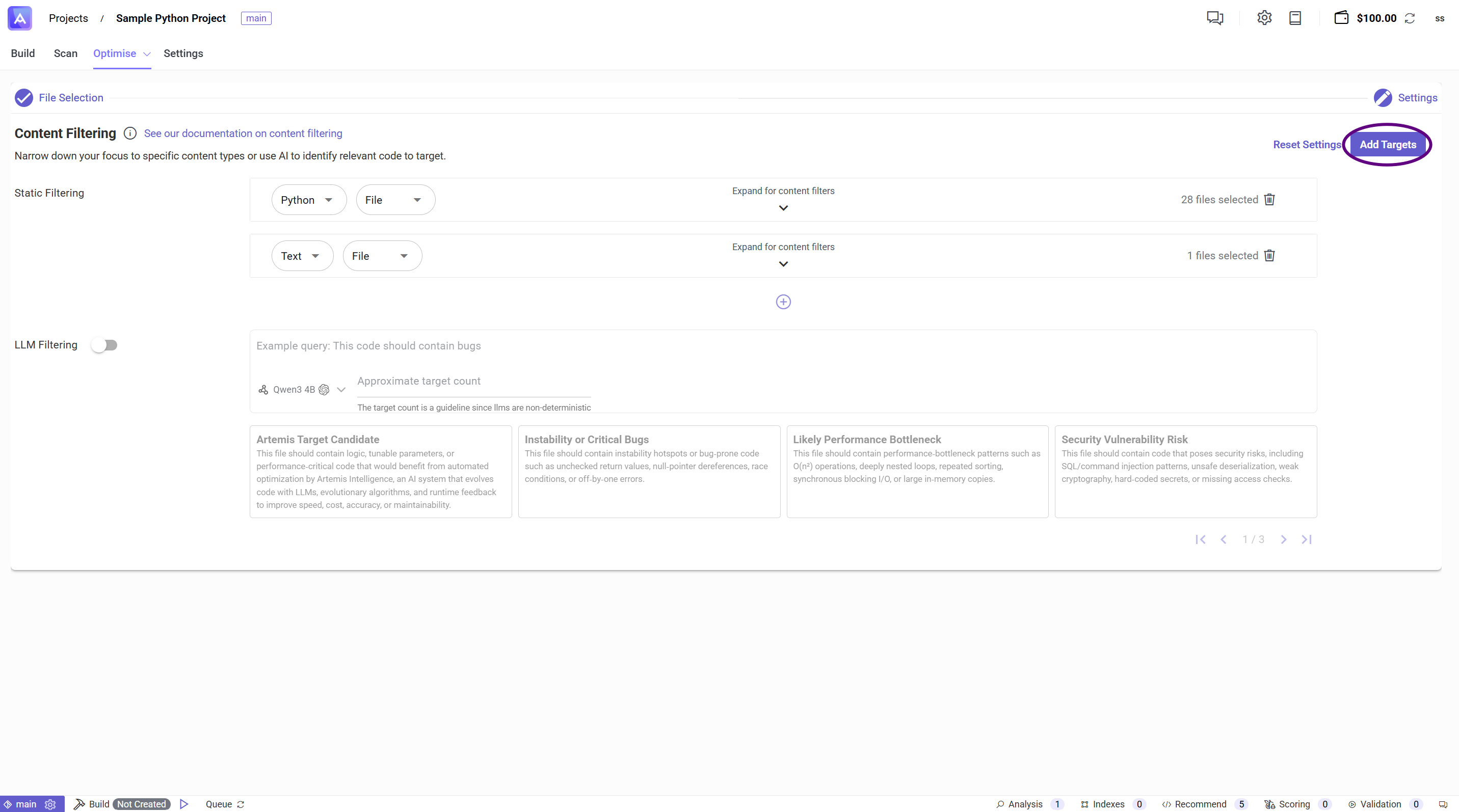
Figure 11: Filter files before adding as targets
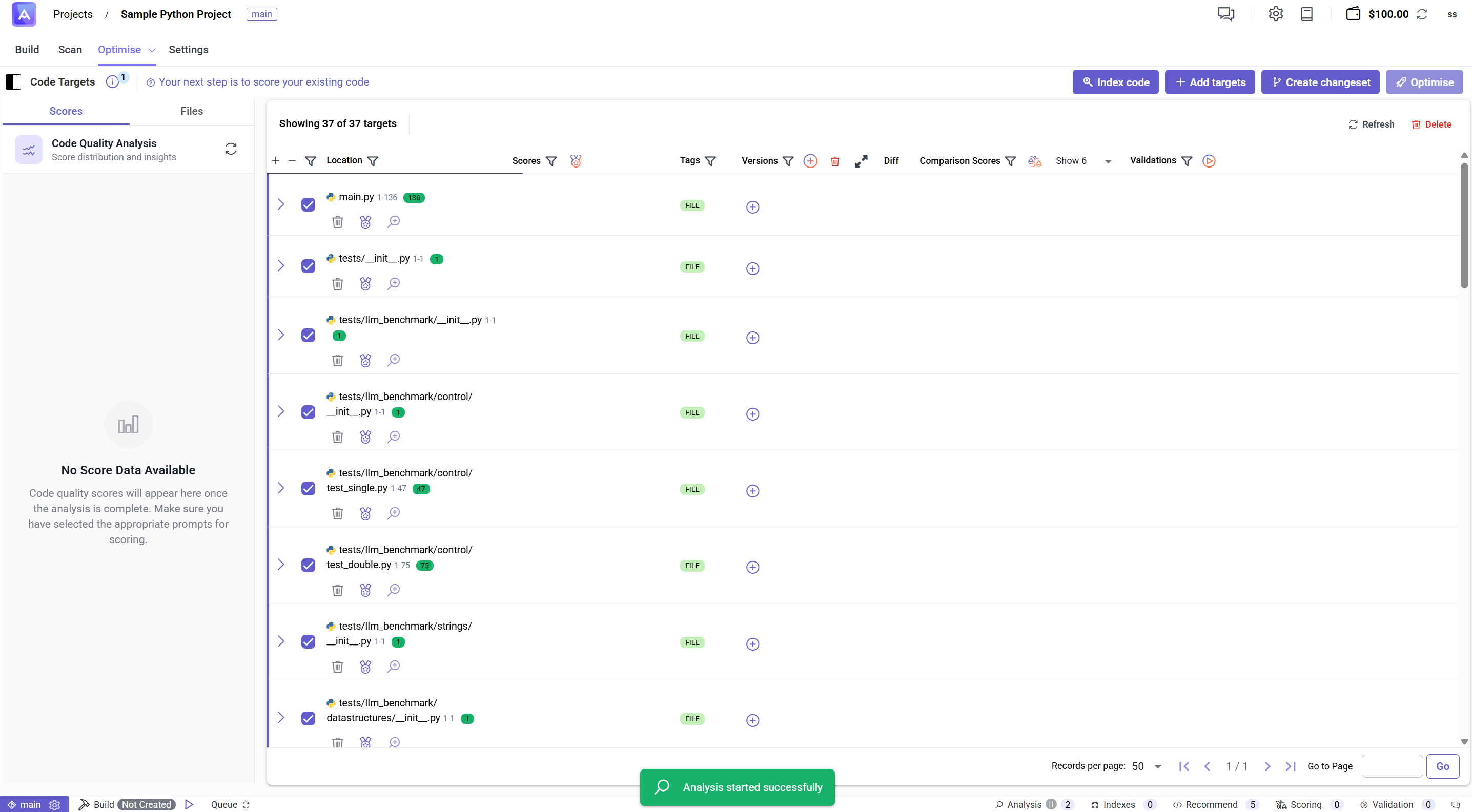
Figure 12: Targets ready for optimisation
Step 5: Review Targets
- Review the generated targets in the list. Each target represents a file, function, or code block that can be optimised.
- Decide which targets to prioritise. Use the following methods to identify which targets need optimisation:
- Scoring (see Step 6): Evaluate code quality metrics to identify targets that need improvement. Note: You need to run scoring from Step 6 before you can use scoring results to filter targets.
- Contextual chat (see Step 7): Ask questions about the code to understand its purpose and identify optimisation opportunities.
- Choose your optimisation approach:
- One-shot LLM (see Step 8): Use for quick, direct code improvements on individual snippets.
- Artemis Intelligence (see Step 9): Use for complex optimisations requiring multiple candidate versions and validation.
Step 6: Score Code Blocks
Scores help you identify code target candidates for optimisation. You can score individual targets or all targets at once.
-
Choose which targets to score (see Figure 13):
- Individual target: Click the
Scoreicon below the specific target you want to score. - All targets: Click the score medal icon next to the "Score" column header.
- Individual target: Click the
-
Choose from predefined metrics and select a model for scoring (see Figure 14).
-
Alternatively, select
Define Newto create a custom metric. If creating a custom metric, define the prompt name and prompt text (see Figure 15). -
Click the
Scorebutton to start scoring. The results appear as shown in Figure 16. You can hover over the scores or click on them to view more details. Each metric (for example, Bugs, Evolvability, Optimisation, Quality, and Score) is displayed along with an average score.
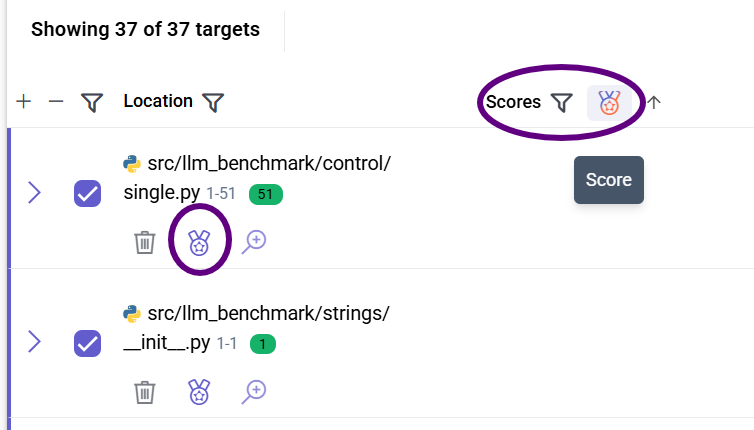
Figure 13: Open the scoring panel for a snippet
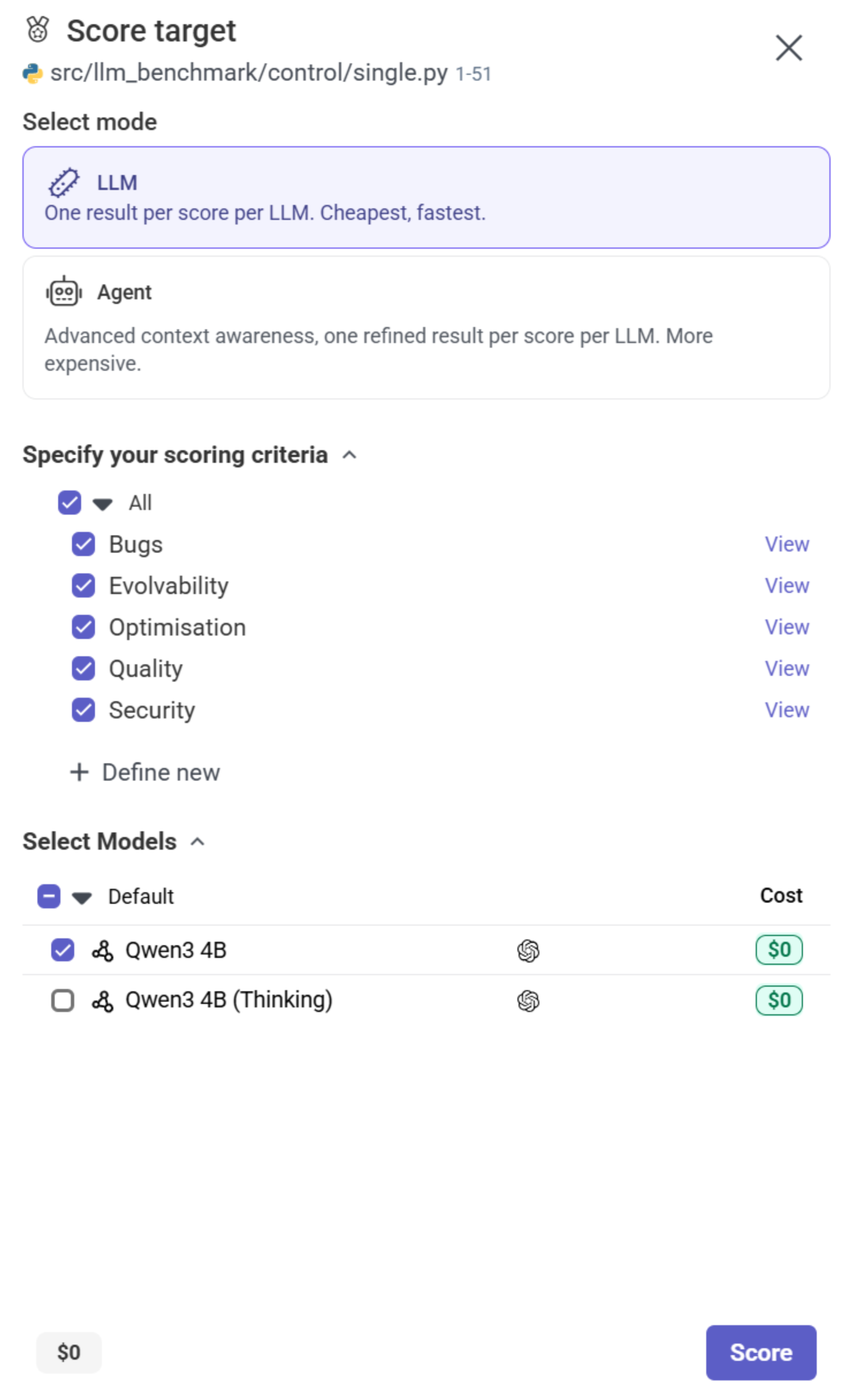
Figure 14: Choose scoring metrics
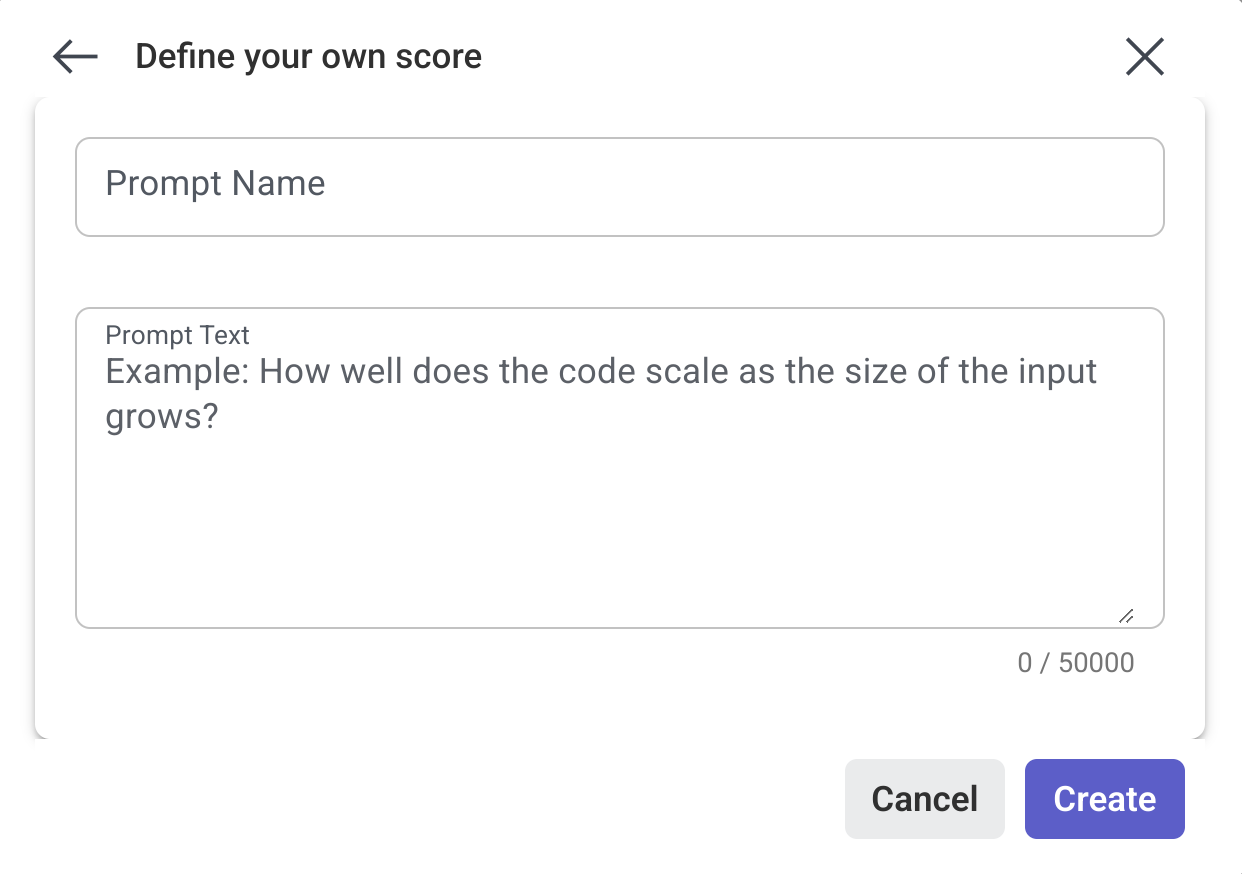
Figure 15: Custom Score

Figure 16: Review snippet scoring results
Step 7: Explore with Contextual Chat
Use the chat insights to better understand your code before making optimisation decisions.
- Select a target (identified by the file path in the location column) to open the context-aware chat panel (see Figure 17).
- Ask Artemis chat questions. Example questions:
- "What does this function do?"
- "How can I improve the performance of this code?"
- "Explain the logic in this section"
- "What are potential issues with this implementation?"
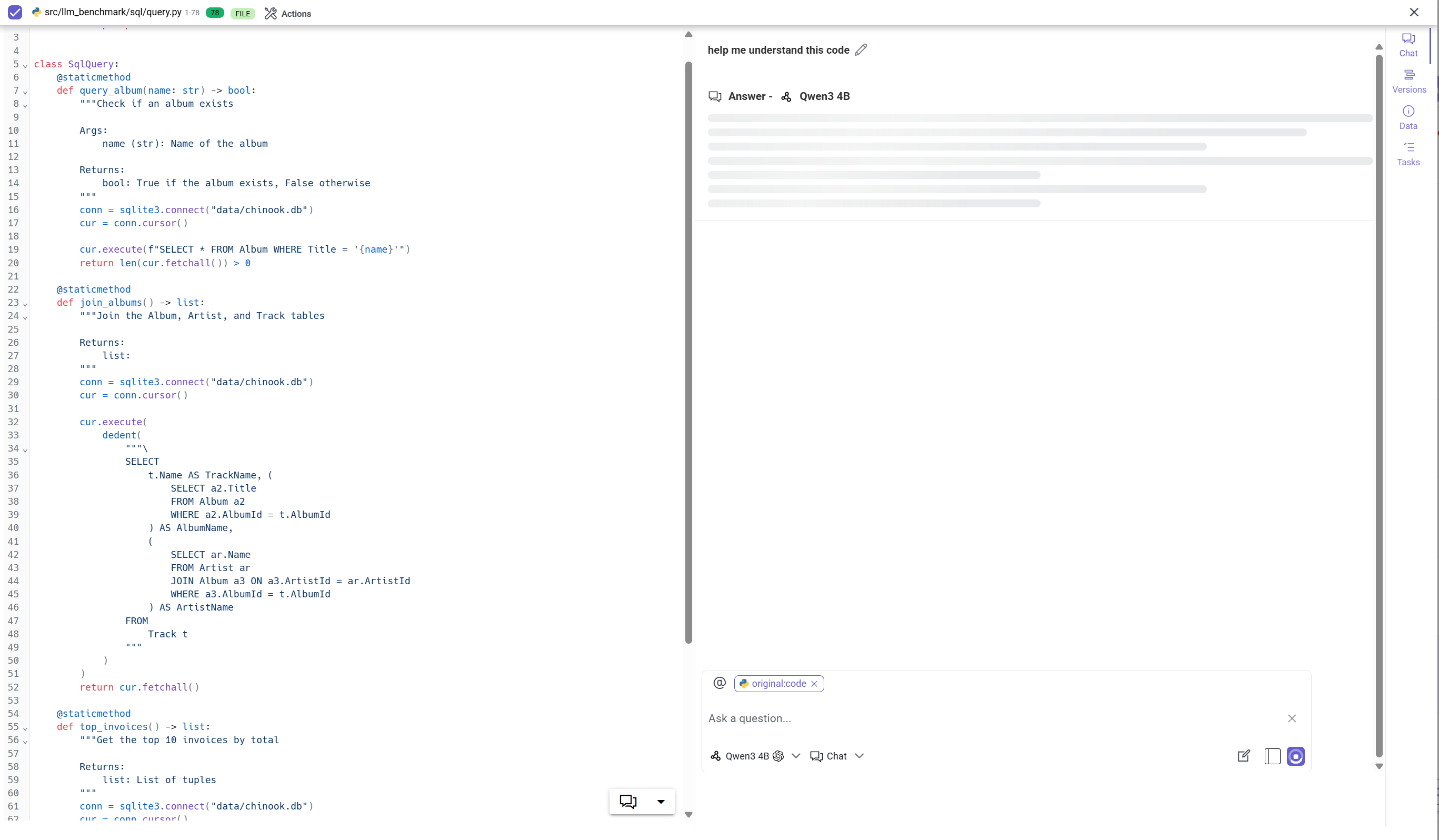
Figure 17: Chat with Artemis about the current file
Step 8: Generate One-Shot Code Updates
- Click the Create (plus) icon for a target to open the version generation dialog (see Figure 18).
- Select the mode
LLM. - Update the prompt, select the model (for example, Qwen 3 4B), and click the
Generate Versionsbutton. - Review the optimised code snippet, checking the differences. This score reflects the difference between the original score and the optimised score.
- Click
Validateto run tests or compile steps through the registered runner (see Figure 20). The runner executes the validation commands locally and reports results. - If validation passes, you can proceed to integrate the optimisation. If validation fails, review the errors and consider regenerating the code with an updated prompt.
- Integrate the optimisation into your code through a pull request (see Step 10).
Note: To perform one-shot code optimisation for all targets at once, click the versions icon next to the "Version" column header in the targets table. This opens the same version generation dialog for bulk optimisation.
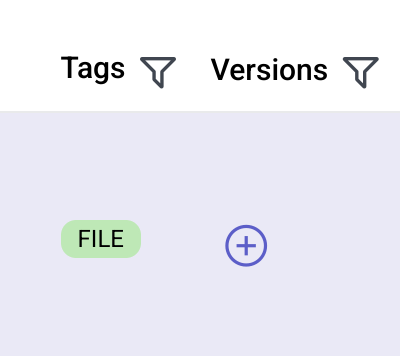
Figure 18: Click the Create icon to generate a new version
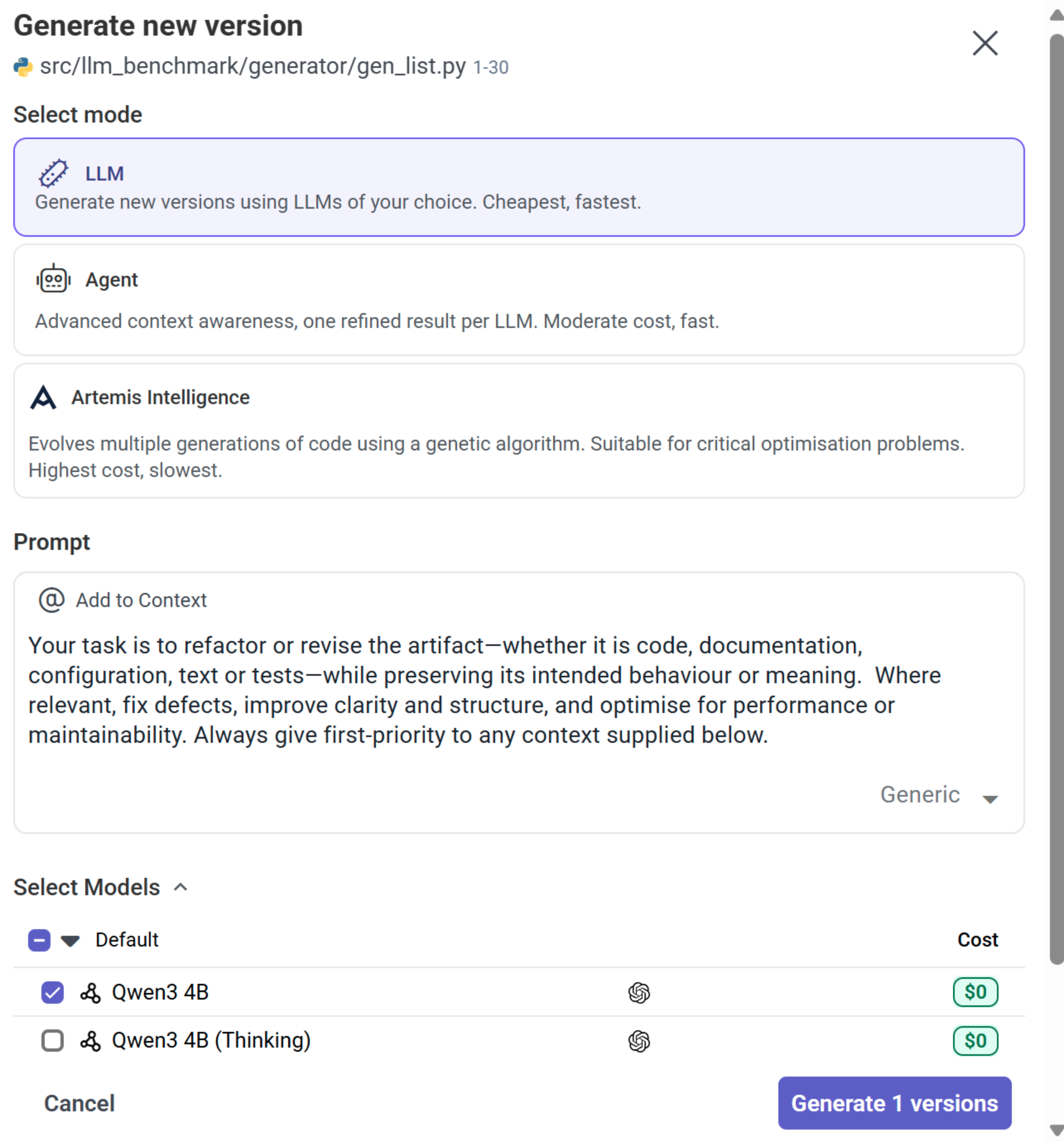
Figure 19: Configure a one-shot update with Qwen 3 4B

Figure 20: Validation result from the local runner
Step 9: Produce Multi-Version Optimisations with Artemis Intelligence
- Click the
Createicon (see Figure 21) in the row for the target code. This opens the version generation dialog. - Select the mode
Artemis Intelligence(see Figure 22). - Configure the version settings in the dialog (see Figure 22):
- Update the
Prompt. We provide a default prompt, but incorporating domain knowledge will help guide the optimisation. - Select
Models. Multiple models can be applied for a single optimisation usingArtemis Intelligence.
- Update the
- Click
Configuration(located in the top left corner within the Artemis Intelligence option; see Figure 23). Configure the following options:- Select Executable Code and Runner. These can be updated in project Settings (see Step 2).
- Specify Score criteria. Multiple criteria can be selected, and the optimisation will be treated as a multi-objective optimisation.
- Note:
- You can update the Score Prompt Name and Prompt Text by clicking View.
- You can also add custom score criteria by clicking Define New.
- Click the back arrow (top left corner of Figure 23) to return to the version generation dialog. Once you are satisfied with the Artemis Intelligence settings, click
Generate Versionsto start the Artemis Intelligence engine. - Optimisation versions will start being generated and populated (see Figure 24). Each row represents one optimisation version. Click a version to view code differences. Options are available on the right, including an agentic chat.
- Each optimised code version displays the following information and options (see Figure 25):
- Version ID: A unique identifier for the code version (for example,
A-gen1pop0-f72ee). - Change indicators: Green indicators (for example,
+17) show lines added, and red indicators (for example,-1) show lines removed compared to the original code. - Three vertical dots menu: Click to access integration options, including creating changesets or pull requests (see Step 10).
+icon: Click to generate additional optimisations using LLMs or Artemis Intelligence, starting from this code version as the base.- Scale icon: Click to perform scoring and view a relative score comparing this version to the original code.
- Play icon: Click to validate the code snippet by running tests or compile steps through the registered runner.
- Score Values: Relative scores comparing the optimised version to the original. The first value is the average of all scores, followed by individual objective scores (for example, Compatibility, Equivalence, and Performance).
- Version ID: A unique identifier for the code version (for example,
- Click
Validateto run tests or compile steps through the registered runner (see Step 2 for runner setup). - Integrate the optimisation into your code through a pull request (see Step 10).
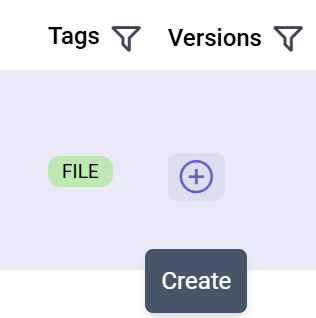
Figure 21: Open the Create menu to start version generation
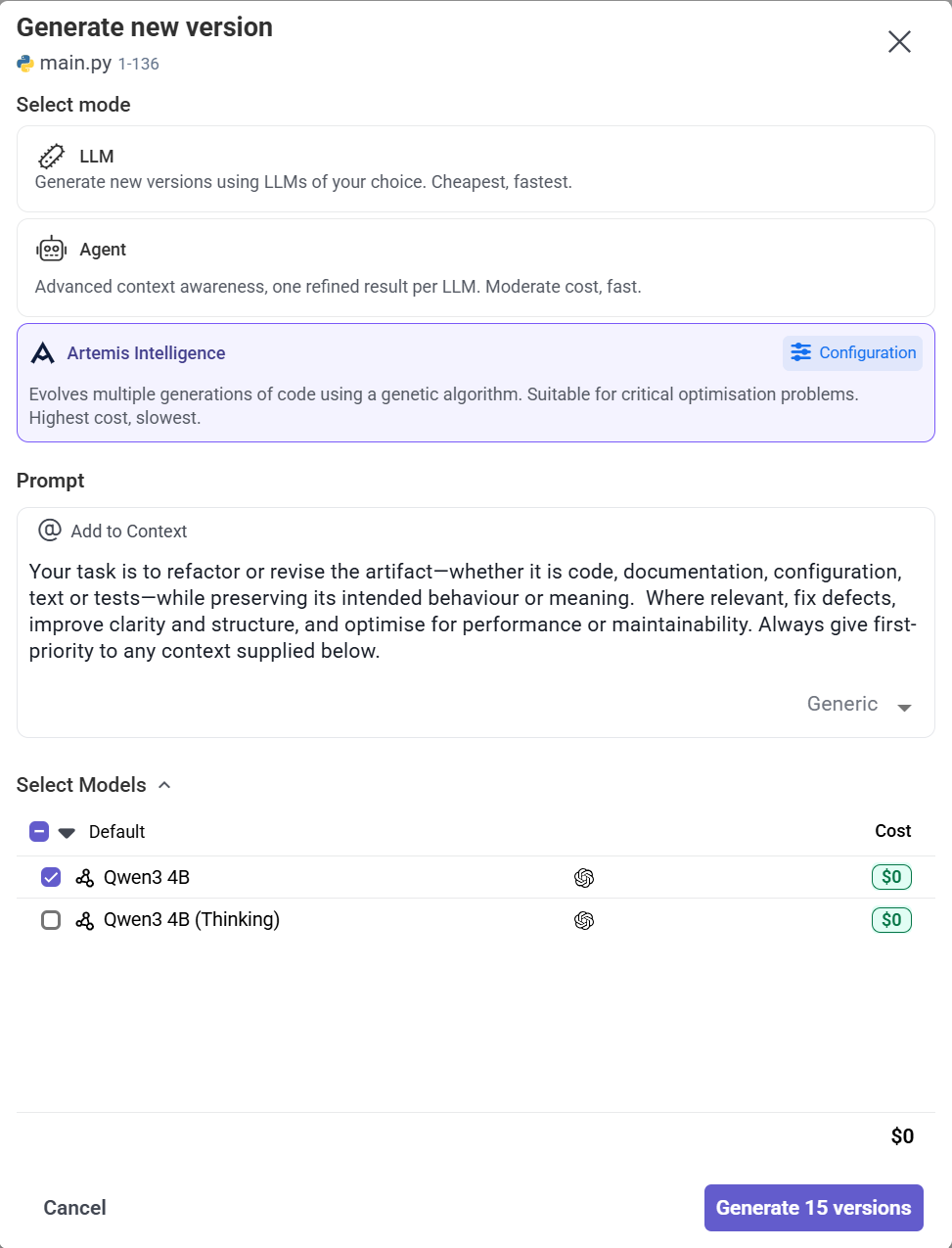
Figure 22: Launch Artemis Intelligence for the target
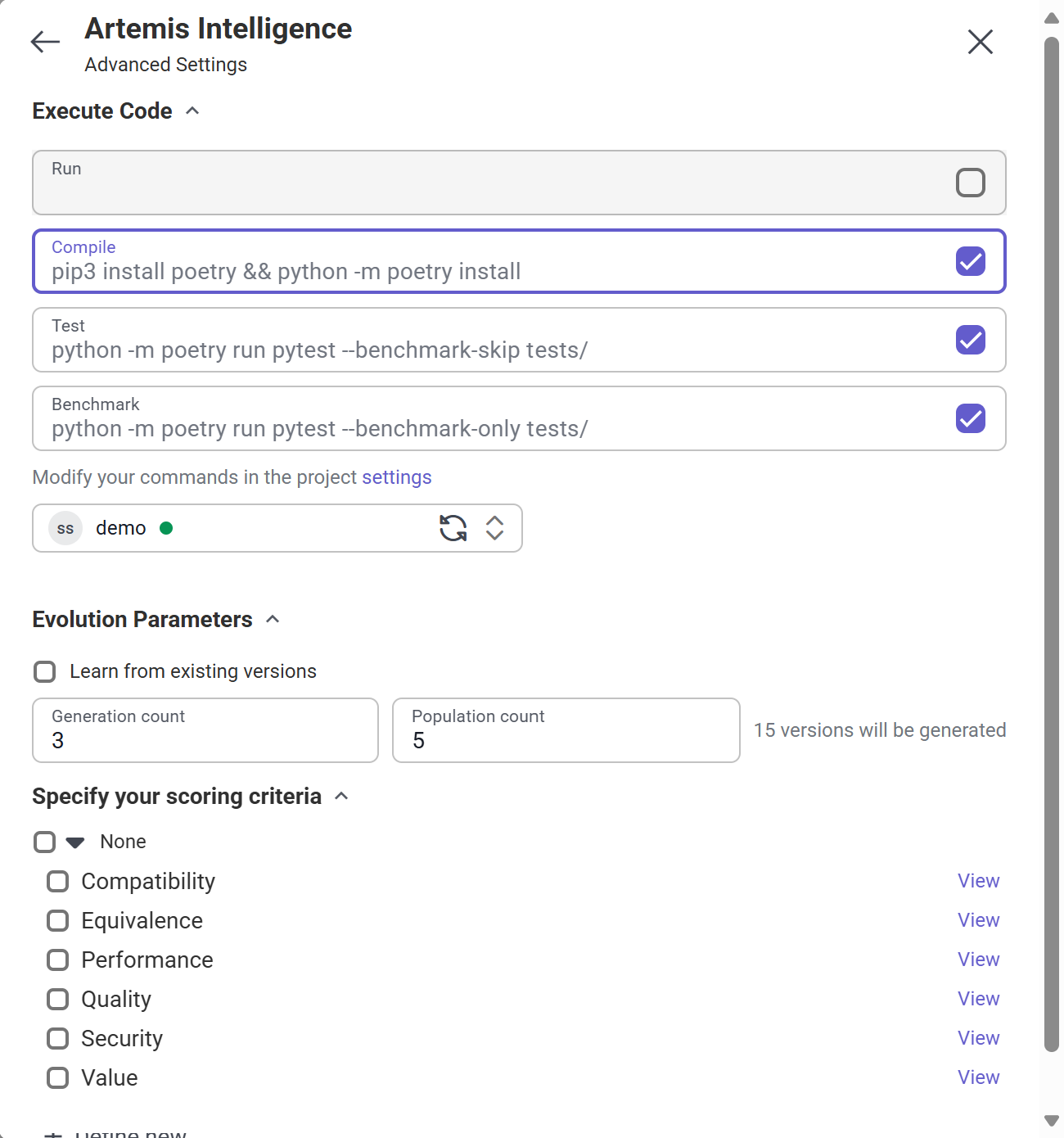
Figure 23: Configure runner actions and scoring
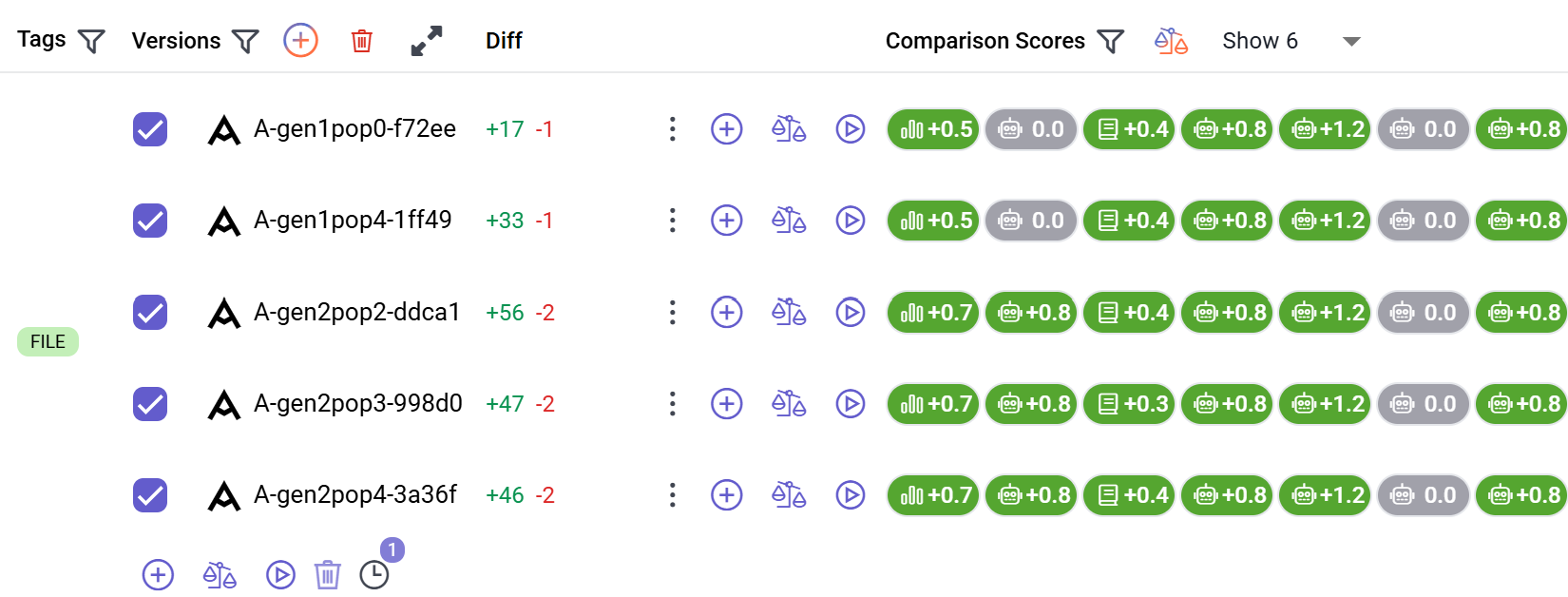
Figure 24: Compare generated optimisation versions

Figure 25: One Code Version
Step 10: Integrate Optimisations
- Click the options icon (three vertical dots) next to the optimised version to access integration options (see Figure 26). Available options include:
- Download the optimised file: Download only the specific optimised file.
- Download the project: Download the entire project with the optimised file integrated.
- Create a changeset: Create a changeset that you can use to generate a pull request in your Git repository. This is the recommended method for integrating optimisations into your codebase.
- Delete the version: Remove this optimisation version.
- If you choose to create a changeset, follow the prompts to configure and generate a pull request that integrates your optimisations into your Git repository. For more details on changesets, see Changesets.
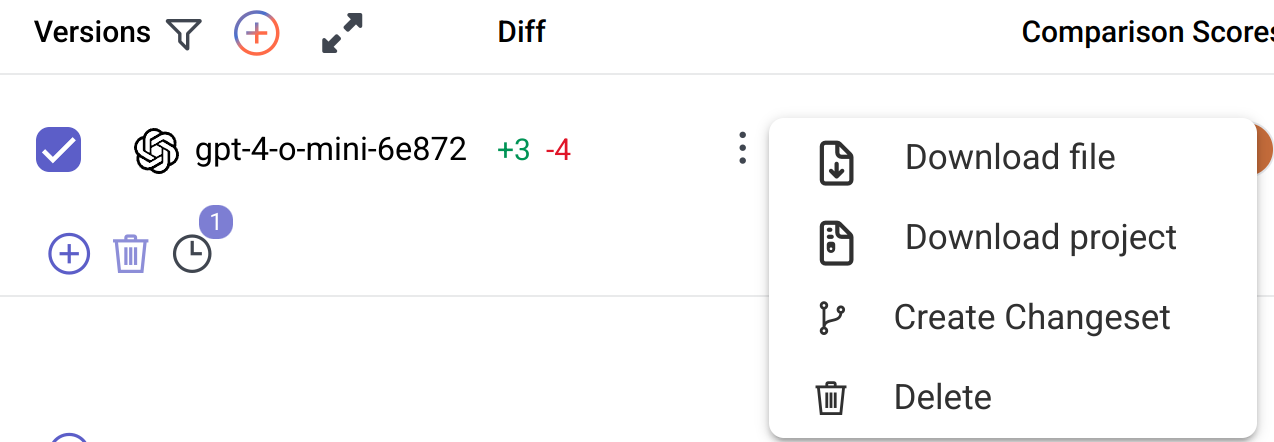
Figure 26: Version options menu
Next Steps
- Learn more about changesets to integrate optimisations into your Git repository
- Learn how to validate code using custom benchmarks
- Explore Artemis Intelligence for advanced multi-version optimisation
- Use Code Audit to identify and fix code quality issues
- Explore the Planning Agent for strategic feature development
- Use Agentic Chat to explore your codebase with RAG-powered search