Creating an Optimization
Learn how to create and configure an optimization in Artemis to find the best-performing combination of your code versions.
Navigating to a New Optimization
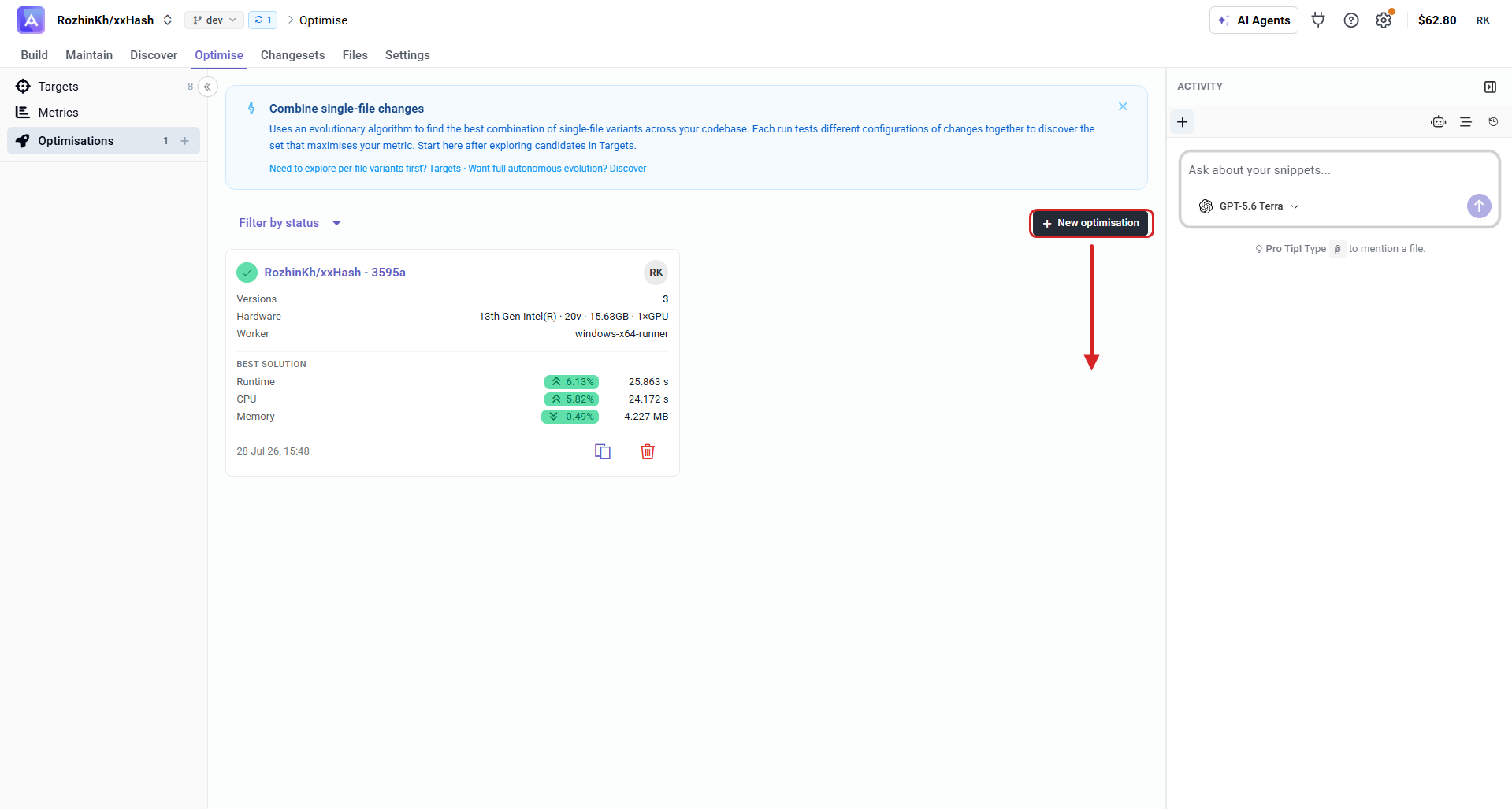
Go to the top-level Optimisations tab. It lists all your optimizations — this is where you create new ones and manage existing runs. Click New optimisation in the top right to start.
Setting up the optimization
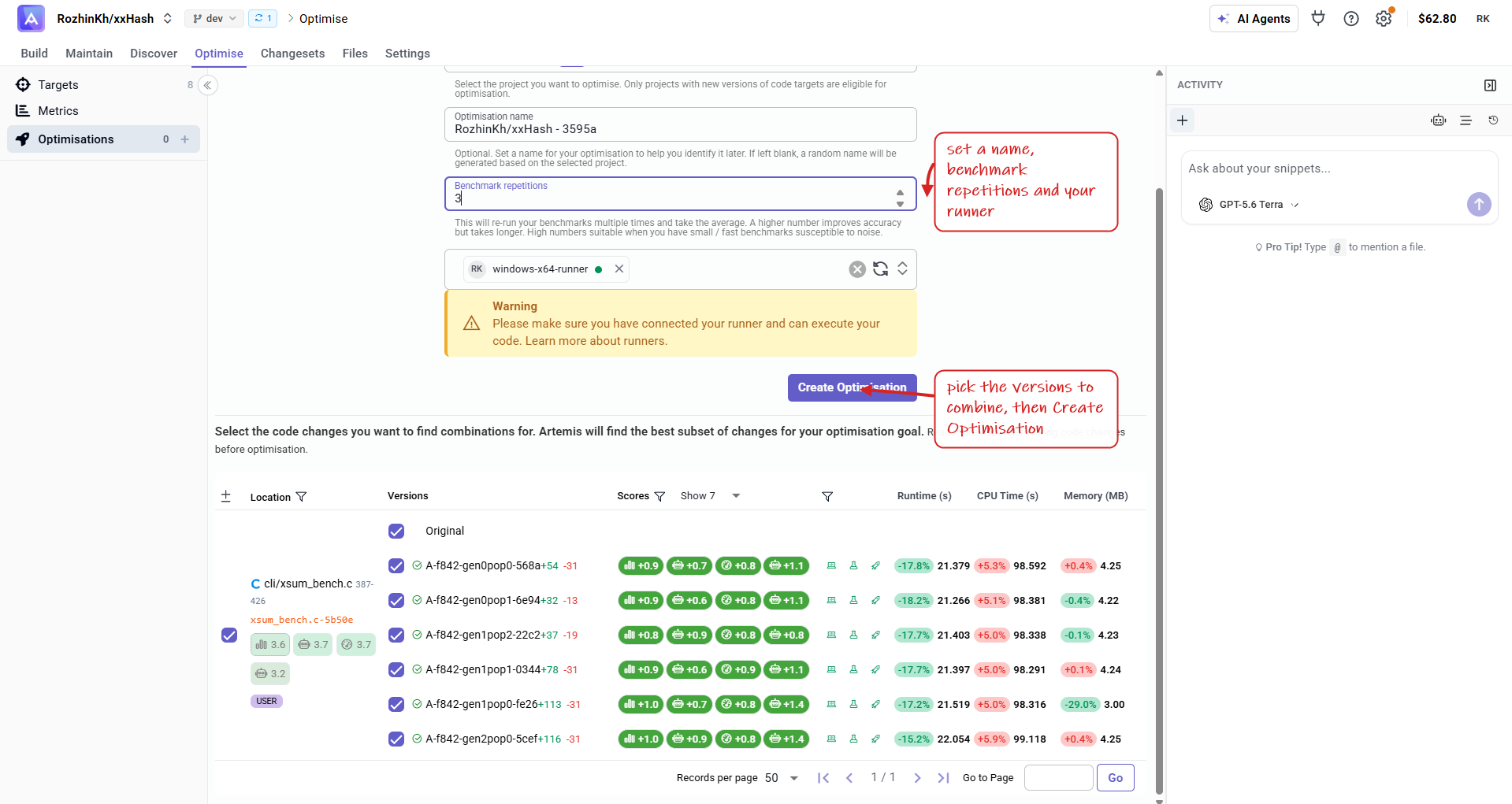
The new-optimization page is a single screen: the configuration at the top, and the code versions to combine below.
Configuration
- Optimisation name — a descriptive name to find this optimization later. Leave blank for an auto-generated one.
- Benchmark repetitions — how many times each version is re-run; results are averaged. Higher improves accuracy but takes longer (useful for small/fast benchmarks that are noise-prone).
- Runner — your connected runner. Make sure it's set up first — see Artemis Runner.
Choose the versions to combine
- Keep the Original as a baseline.
- Prioritise versions with green scores that passed validation.
- Focus on the best performers to keep the run efficient.
Click Create Optimisation to start. You'll return to the Optimisations tab, where the run first appears as Pending and then completes with a best solution summary on its card.