Reviewing Optimization Results
Learn how to read an optimization's results in Artemis and pick the best-performing combination of your code versions.
Accessing Results
From the Optimisations tab, click a finished optimization to open it. Its detail view has three tabs: Versions, Metrics, and Insights.
Understanding the Results
Performance summary
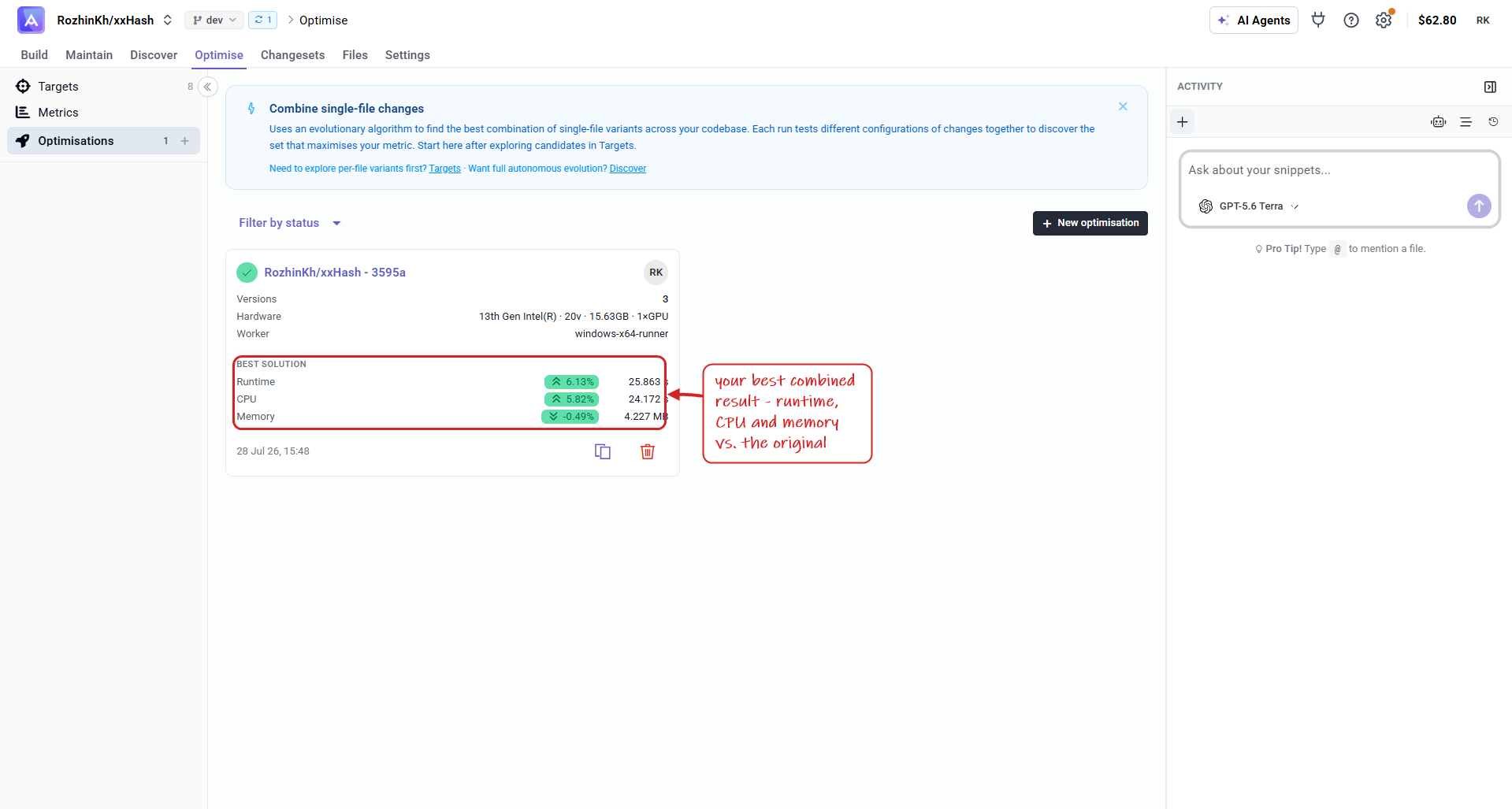
Each optimization card shows its best solution at a glance — the runtime, CPU, and memory of the strongest combination versus your original code, along with the runner's hardware.
Versions
The Versions tab lists every combination Artemis evaluated.
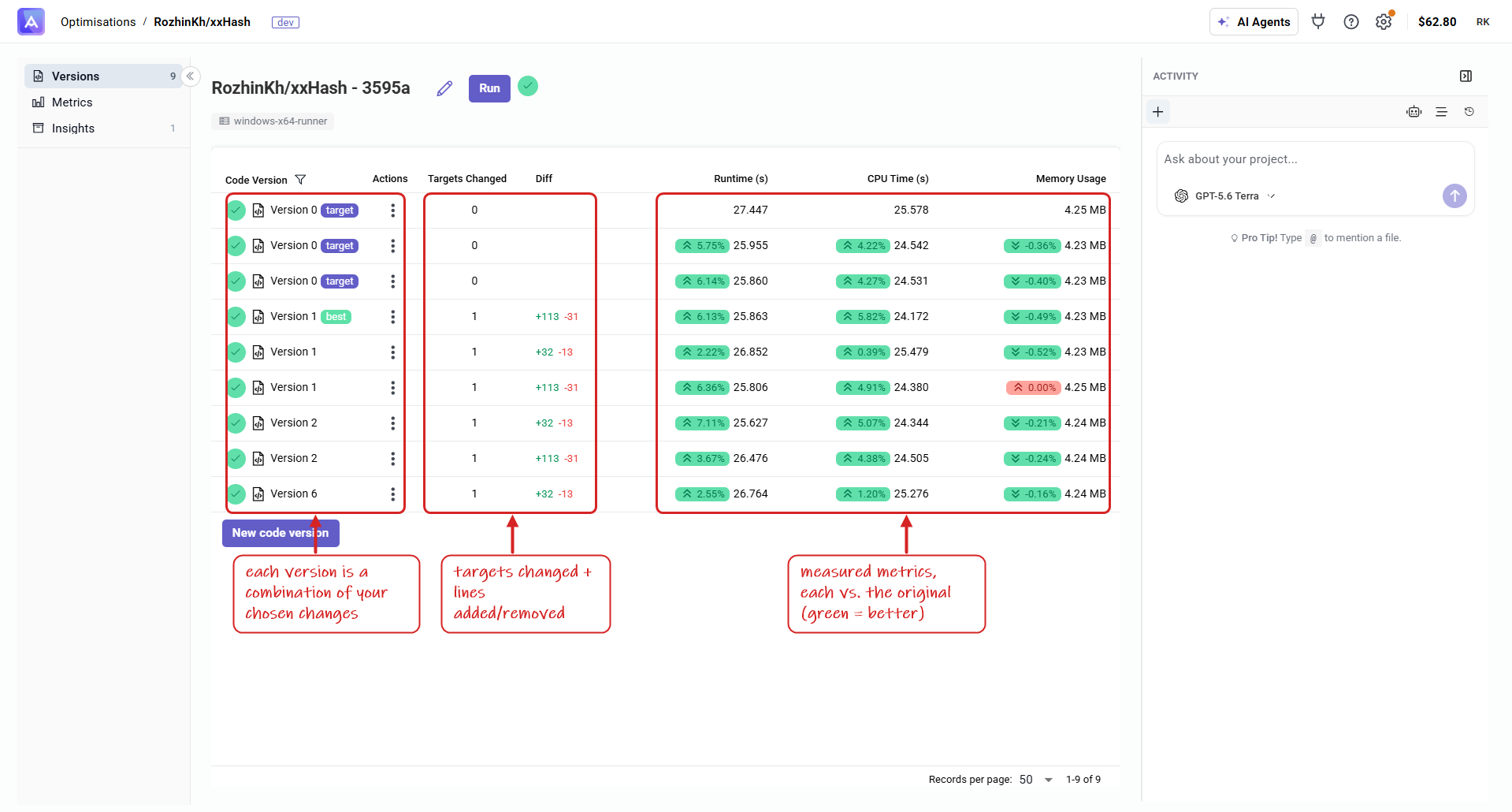
- Code Version — each row is a version built from a combination of your selected changes (the
bestandtargetbadges mark the winning and baseline versions). - Targets Changed — how many targets that version touches.
- Diff — lines added / removed.
- Runtime, CPU Time, Memory Usage — the measured result of each version, each shown with its % change vs. the original (green = better, red = worse).
Metrics
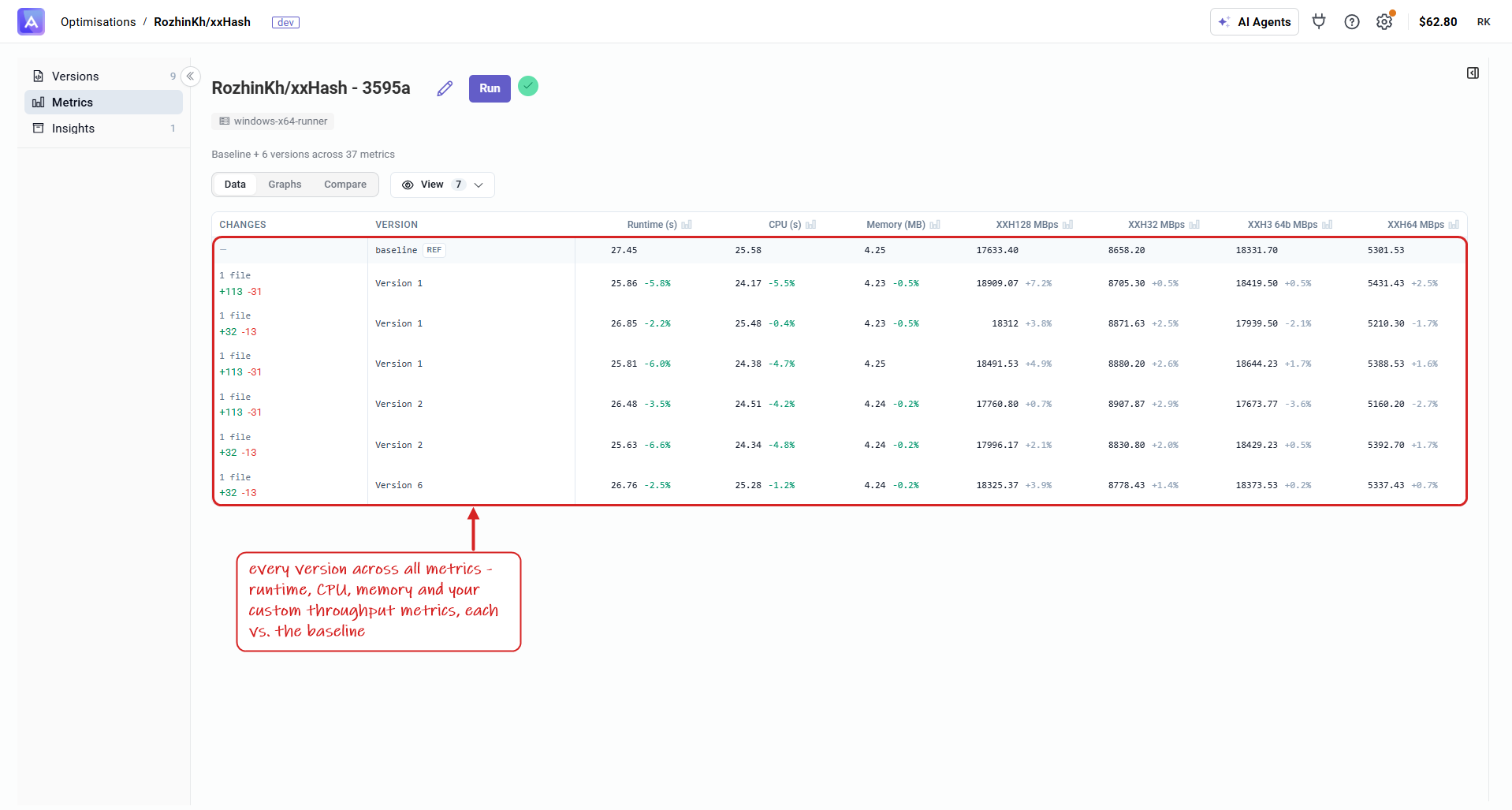
The Metrics tab compares every version across all of your metrics at once — runtime, CPU, memory, and any custom metrics (such as throughput) you extract from logs — each against the baseline.
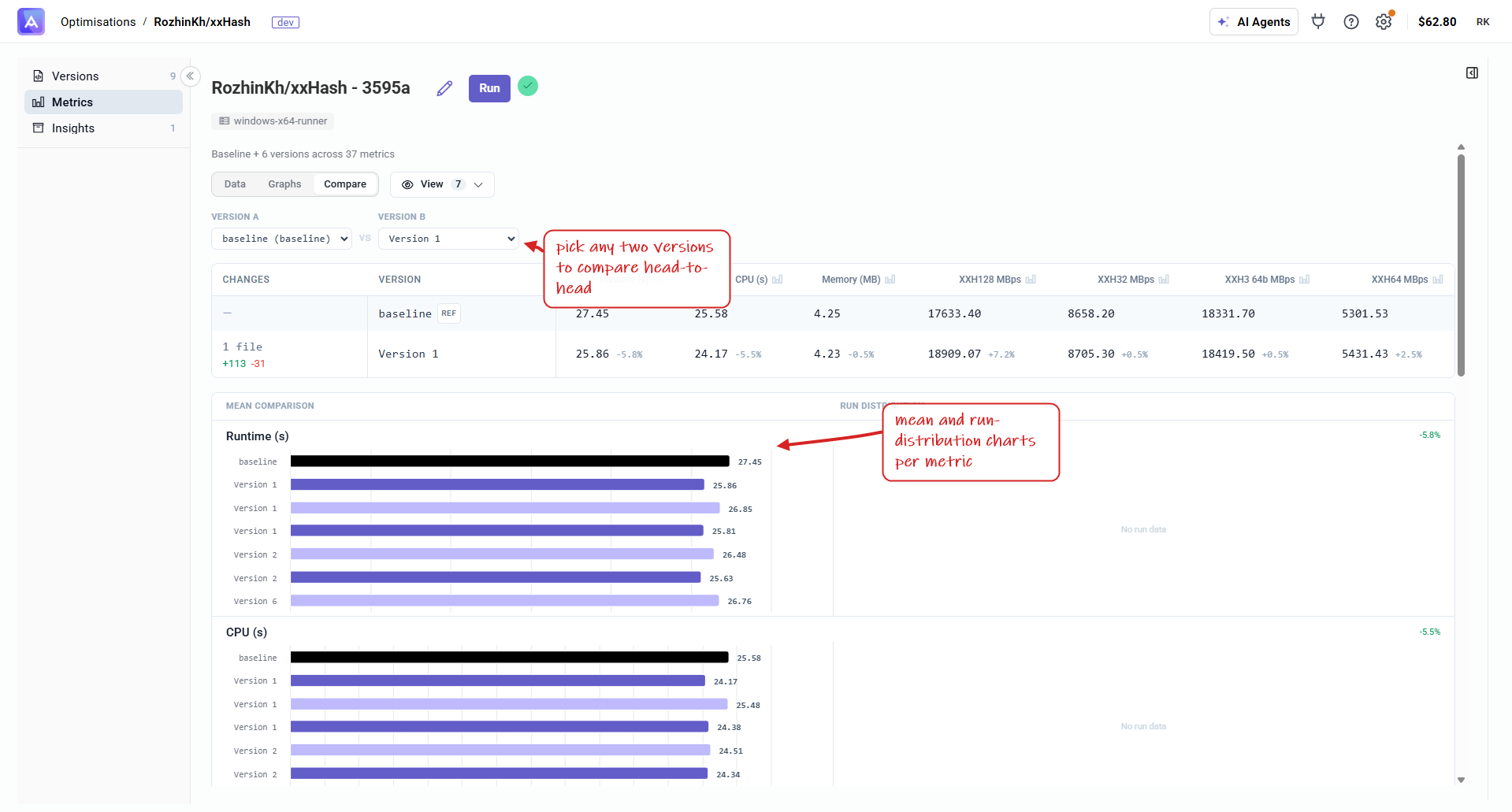
Switch to Compare to pick any two versions and view them side by side, with mean comparison and run-distribution charts per metric.
Key Insights
The Insights tab breaks the result down per code target.
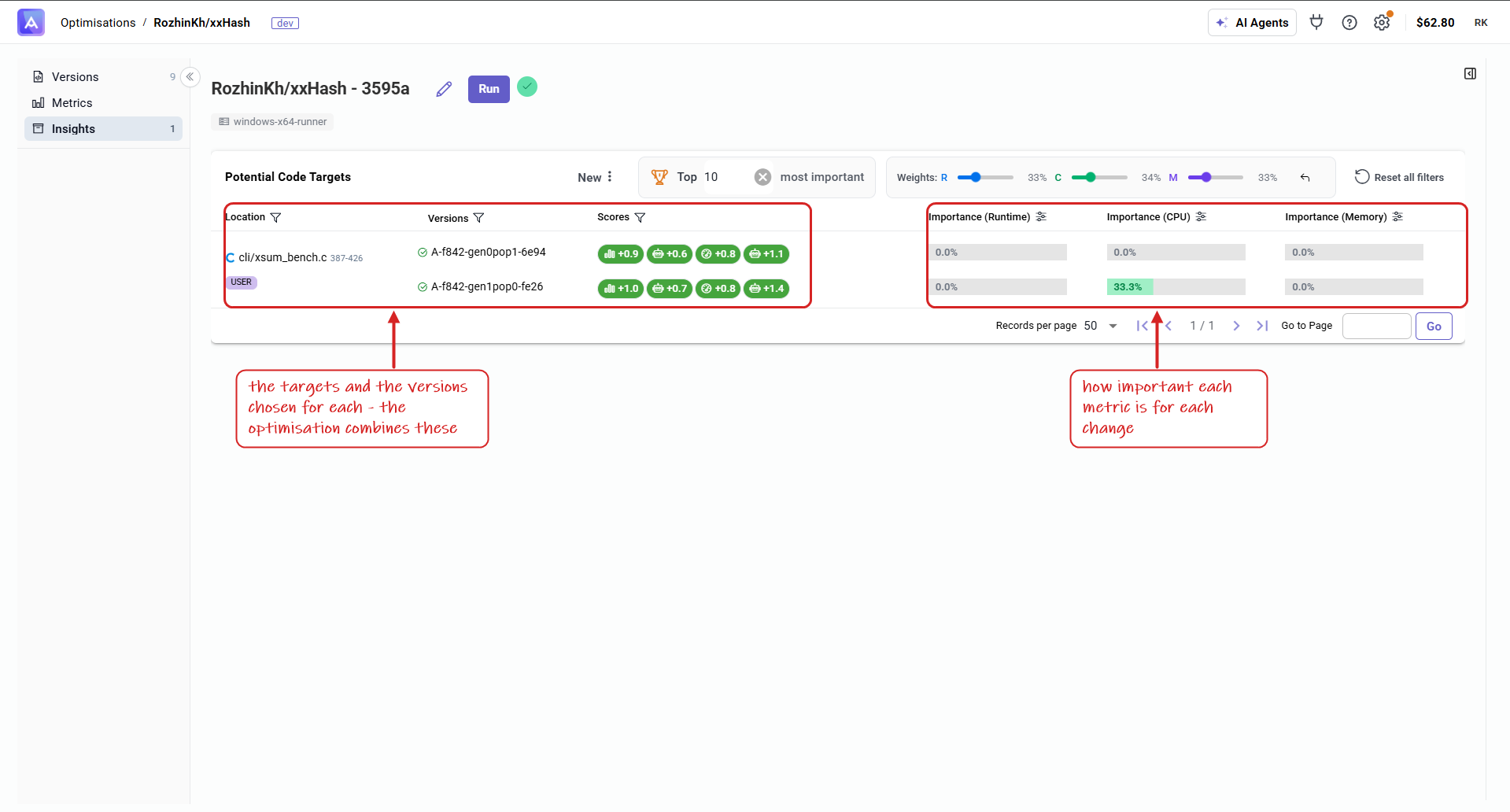
- Location & Versions — the targets, and the versions chosen for each. Optimization versions are combinations of these.
- Scores — the per-target scores for each version.
- Importance (Runtime / CPU / Memory) — how much each change contributes to each metric, so you can see what's actually driving the improvement.
- Weights & filters — adjust the R / C / M weights, or filter to the most important targets, to reorder by what matters to you.
Selecting the Best Version
- Speed-critical → the version with the best Runtime.
- Memory-limited → the version with the best Memory.
- Balanced → the best combined version (marked in the Versions tab).
Next Steps
After reviewing results you can take further actions on optimized versions.